
label-studio
Label Studio is a multi-type data labeling and annotation tool with standardized output format
- 29k
- TypeScript
- Apache-2.0
- 20 h ago
Free screenshot tool and screen recorder for Windows: floating thumbnails, quick editor, scrolling capture, text search with OCR, MP4 and GIF. Built with C#.
Repo rubenitx/stackshot, read from GitHub 29 min ago. rubenitx has not joined Take My Repo.
rubenitx/stackshot is a public repo on GitHub by rubenitx. Free screenshot tool and screen recorder for Windows: floating thumbnails, quick editor, scrolling capture, text search with OCR, MP4 and GIF. Built with C#. It declares the MIT license on GitHub. It is written mainly in C#, has 27 stars and last changed on 2026-11-23. Nobody has reviewed it on Take My Repo yet, which says nothing about its quality. Read from GitHub on 2026-11-23.

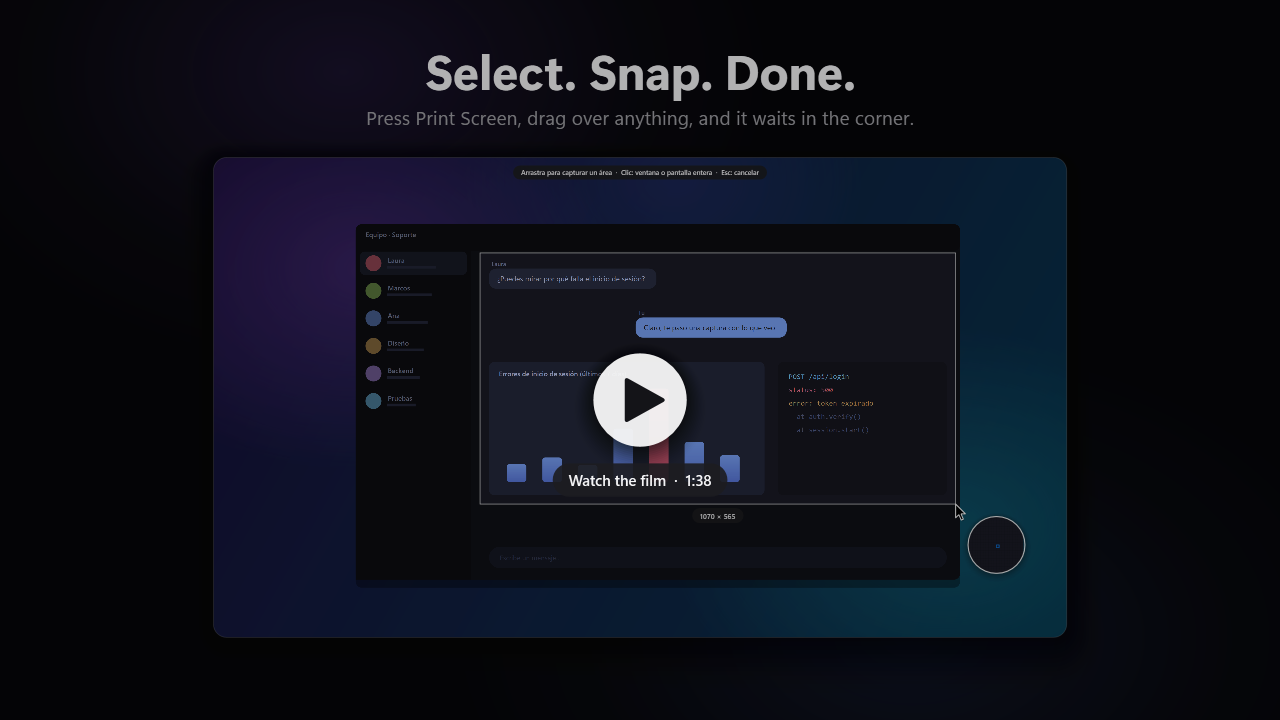
Press Print Screen, select, and you are done. Every capture sits in a floating thumbnail that you can copy, annotate or drag wherever you want.
Free and open source · 2.2 MB · No admin rights
For Windows 10 and 11 · Version 2.1.0 · Also as an MSI package
Website · Español · Changelog · Security · IT policies
Contents: Three steps · What's new · Features · Modes · Capture · Mark up · Hide data · Scrolling · Record · History · XML and Markdown · Main window · Pixel · More · Performance · Installation · Command line · Shortcuts · Privacy · FAQ · Build · License
[!NOTE] The user interface is in Spanish, English, German and Korean: a new installation follows your Windows language (Automatic), and Settings › General › Appearance › Language changes it at any time. Screenshots on this page show the Spanish interface.
| 1 · Print Screen | 2 · Editor | 3 · Ctrl + V |
|---|---|---|
| Capture An area, a window, the whole screen or a scrolling page. Seven modes, each with its own shortcut. |
Mark it up Arrows, shapes, numbered steps, text, highlight and redaction. And a backdrop with padding and shadow if you are presenting it. |
Share it It is already copied. Paste it anywhere, or drag the thumbnail into a chat, an email or a document. |
Version 2.1 is out. Here is what it adds; every change is in the changelog.
--capture <mode>, --open-home and --last-xml, and registry values to fix the save folder or turn features off..md and .xml files right from Explorer.Stackshot is a free, open source screenshot tool and screen recorder for Windows 10 and 11. It brings the CleanShot X workflow to Windows. If you are looking for an alternative to ShareX, Snagit, Greenshot or Lightshot, it is a free, MIT-licensed option with floating thumbnails, a quick editor, no accounts and no telemetry.
| Feature | Notes |
|---|---|
| Screenshots of an area, a window or the whole screen | Print Screen, Alt+Print Screen, Ctrl+Print Screen |
| Scrolling capture, also saved as paginated PDF | Manual or automatic scrolling |
| Floating thumbnails: copy, save, drag into any app, pin above windows | Up to 20 at once |
| Annotation editor: arrows, rectangles, steps, text, highlight, pixelate, redact, crop | Every mark stays editable |
| Presentation backdrop (gradient, wallpaper or your image) | Also for recordings |
| Copy text from the screen (OCR) | Uses the OCR built into Windows; nothing leaves your computer |
| Cover sensitive data (ID numbers, IBAN, cards, e-mails, phones) | Editor button; automatic covering is off by default |
| History with search inside the images | The text index can be turned off or deleted |
| Video (MP4) and GIF recording | FFmpeg is downloaded the first time you record, after you accept |
| Computer sound, microphone and webcam bubble | Chosen device for each |
| Lossless "Cine" master, verified after recording | A quality option in Recording |
| Pause, show clicks and keys, microphone meter | Clicks and keys are off by default |
| Built-in video player, trim, join, MP4 and GIF export | Plays MP4, MOV, MKV, WebM, AVI, WMV, TS and more |
| Markdown viewer and editor, with PDF export | |
| XML viewer with SOAP tools and comparison | |
| Search for any setting | Ctrl+F in the main window |
| Light and dark themes, screen reader support, high contrast | |
| Mascot (Pixel) with 39 character costumes | On the desktop only if you ask |
| Command line, MSI package and registry policies | For IT departments and keypad buttons |
| Updates verified with SHA-256 and a signature | Automatic installation is off by default |
| No accounts, no telemetry, MIT license |
Seven ways to capture, each with its own shortcut.
An area, the whole screen, a window, a long page, a video, a GIF or a Markdown document: each one has its own shortcut, and all of them start from Print Screen. The full list is in Keyboard shortcuts.
Press Print Screen, drag over anything, and it waits in the corner.
2026-10) or per year and month (2026\10). The default gives the same names as before.Into a chat, an email or a document. Or paste it with Ctrl+V.
Arrows, shapes, numbered steps, text, highlight and redaction.
Backdrops, padding, rounded corners and shadow. For videos too.
One click finds IDs, IBANs, cards, e-mails and phone numbers, and covers them.
Share a screenshot without sharing what shouldn't be in it. The editor's Sensitive data button (Ctrl+Shift+X) finds Spanish DNI and NIE numbers, Social Security numbers, IBANs, card numbers, e-mail addresses and phone numbers, and covers each one with a redaction mark you can remove. It checks control digits, so invoice numbers, amounts and dates are left alone.
Detection can miss data, so look over the result before you share it.
Turn it on once and every capture is checked first. It all stays on your PC.
To do it on every capture, turn on General > Sensitive data > Auto-redact sensitive data on capture. The thumbnail says "Checking data…" for a moment (about 0.4 s at 1080p), and the clipboard, the file and the thumbnail only ever get the covered image. It is off by default, everything is read on your computer, and the uncovered original is kept in %LOCALAPPDATA%\Stackshot\originales only while the capture exists, so a cover can still be removed in the editor.
Detection can miss data, so look over the result before you share it.
Scroll yourself, or let Stackshot scroll for you. One seamless image.
Select an area and scroll, or let Stackshot scroll for you. The frames are stitched into one seamless image without repeating sticky headers or footers. Long captures open fitted to the width, ready to read, and can be saved as a paginated PDF.
MP4 or GIF at up to 60 fps, with sound and with your webcam if you like.
Record an area as MP4 or GIF, with the cursor, at up to 60 fps. Add the computer's sound and your microphone, each from the device you choose and in sync with the image, and your webcam in a round or square bubble. The first time you record, Stackshot offers to download FFmpeg (see Privacy and security).
Before recording, a small window lets you adjust the options (quality, frame rate, sound, microphone, camera) and starts a countdown of 3 seconds by default (0, 3, 5 or 10; it never appears in the video). Recording > Before recording turns the window off or changes the countdown.
Quality goes from light and fast to Cine (Cinema): a truly lossless master (RGB H.264 + PCM in MKV) that Stackshot decodes after recording and checks frame by frame against what it captured. Areas above 1920 × 1200 at 60 fps ask before starting. If the computer cannot keep up, or the disk is filling, the recording stops cleanly and keeps what it has, and anything that fails afterwards is moved to %LOCALAPPDATA%\Stackshot\recuperado.
Trim the ends and export at 1.5× or 2×, in 1080p or 720p.
When you stop, trim the start and end with the yellow handles, add more videos, change the speed (1.5× or 2×), the size (1080p or 720p), the format or the quality, add marks and a backdrop, and export. MP4 quality can be Maximum (default), High, Light, or fit a size: 16 MB (WhatsApp) or 25 MB (email), encoded in two passes (a video too long to fit with decent quality is refused, saying how long fits). Every MP4 is checked before it's handed to you.
Built-in video player. Videos open in Stackshot's own player, with no VLC and no extra codecs: Cine masters always, other videos by default (Recording > After recording). It plays MP4, MOV, MKV, WebM, AVI, WMV, TS and more, with speed from 0.25× to 2× keeping the pitch, frame-by-frame stepping, a choice of sound track and an info panel. Videos open at their real size when the window fits on screen, and a video longer than two minutes opens where you left off. C saves the frame on screen as a picture. General > Files can offer Stackshot for .mkv files, which Windows' own player cannot decode.
Pause and resume, show clicks and shortcuts, and test your mic before you start.
Search the text inside your captures. Windows' own OCR reads them, on your PC.
 |
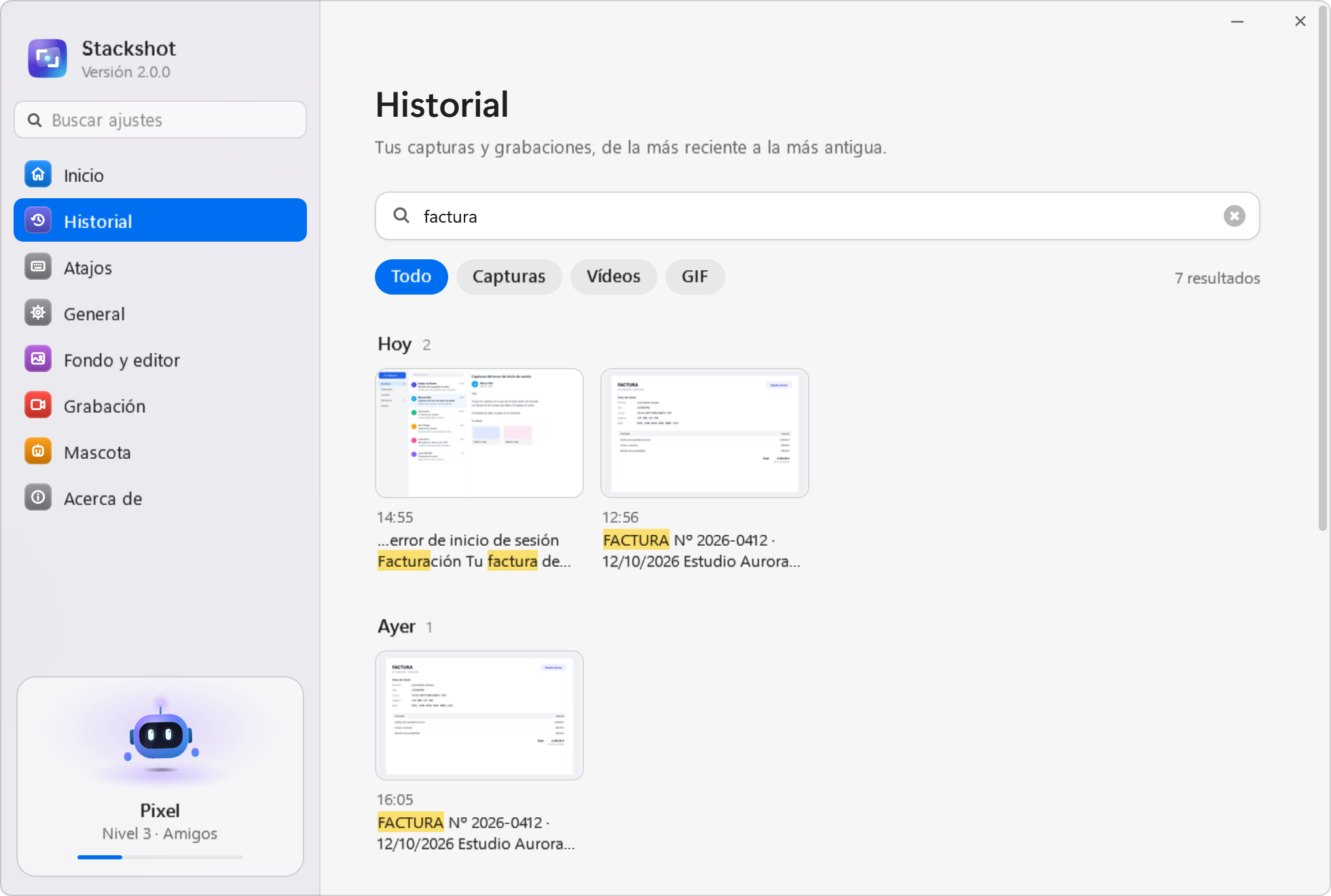 |
The History section lists every capture, video and GIF by day, with thumbnails, filters (All, Captures, Videos, GIF) and a search that also looks inside the images. Stackshot reads the text of each capture in the background with the OCR built into Windows, on your computer (paused while you capture or record), so you can find last week's error message by typing a word that was in it. Matches are highlighted in a snippet of what the capture said.
The history covers the newest 5,000 captures, saved ones and dated subfolders included. The text index lives in %LOCALAPPDATA%\Stackshot\historial; General > Recents turns the reading off and deletes it (Search captures by OCR text), and Delete text index empties it.
Compare two XMLs, read SOAP at a glance, copy as JSON. Export Markdown to PDF.
 |
 |
Open .md and .xml files from Explorer (optional; Windows keeps the final choice), paste them, or drop them on the window. Markdown is rendered with headings, lists, tables, code and quotes, with an editor beside it, find and replace, validation and Ordenar (Tidy). XML becomes a colored, collapsible, searchable tree with formatting, compacting, XPath, validation and copy as an image. Both viewers keep each file's encoding and line endings, and ask before discarding unsaved changes.
XML and SOAP
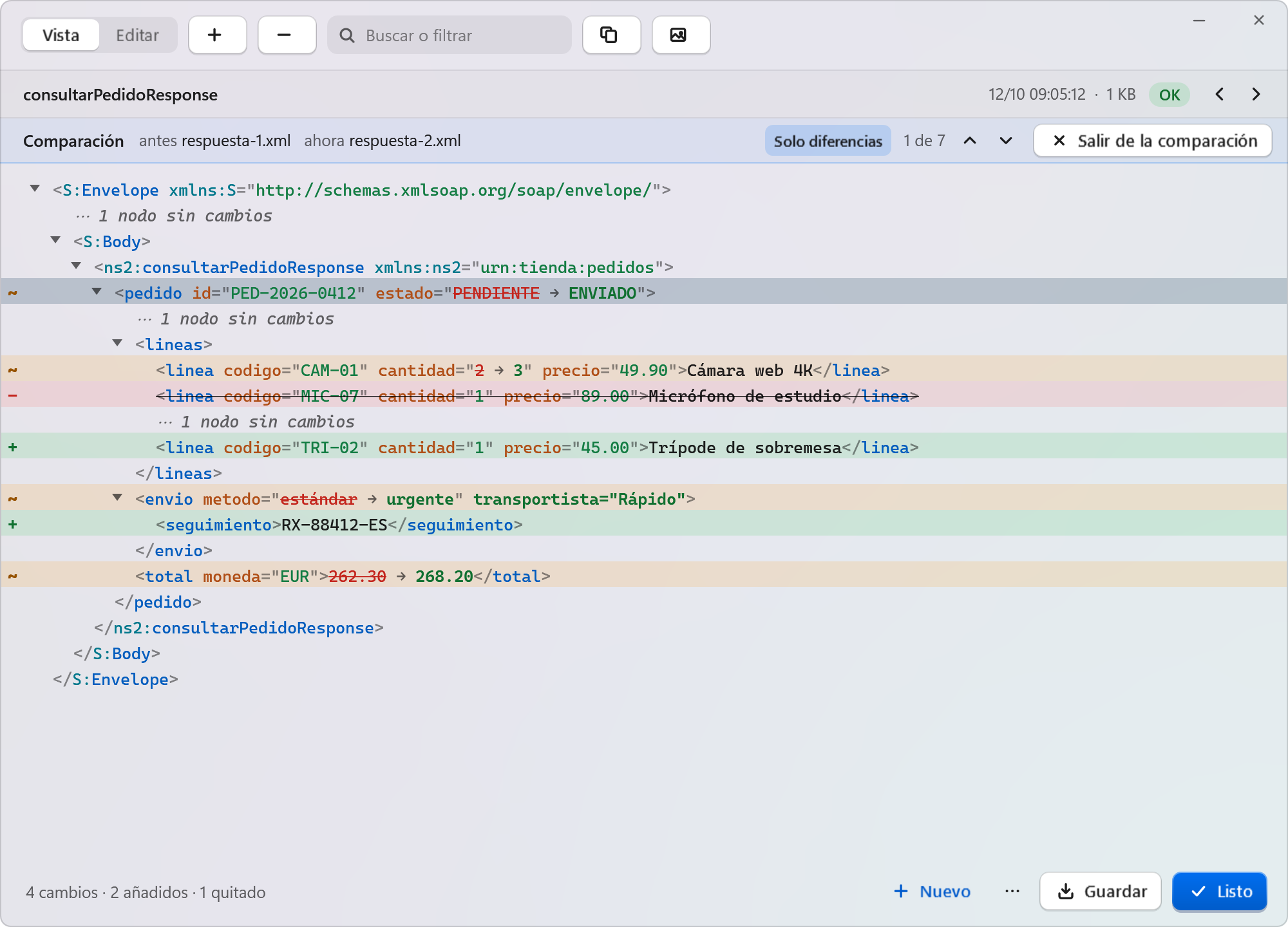
General > Avanzado can watch a folder: every new XML that appears in it opens by itself in the viewer, in front of everything, and [ ] go to the previous or next one. It is meant for programs that leave each SOAP message as an XML file in a folder: it only appears when your IT department sets that folder (the XmlWatchFolder policy, see docs/it-policies.md) or where it was already set up, and it is off by default. From the command line, --last-xml opens the newest one.
Markdown for documentation
imagenes folder next to it, with the link inserted. Pictures on other computers or on the web are never loaded just by opening a document.Three home views, every mode and every setting in one place.
 Light or dark. It follows Windows, or you pick one. |
 Always one click away. Every mode and your latest captures, from the tray. |
Every capture mode, shortcut and setting in one place: Home, History, Shortcuts, General, Backdrop & editor, Recording, Mascot and About. Choose how home looks: Minimal (the mascot, one question and every mode), Widgets (today at a glance: the last capture, captures per day, recording and the folder) or Scene. Quick profiles (Performance, Balanced, Full) set everything in one click.
Find any setting. A search field at the top of the sidebar (Ctrl+F) finds any setting as you type, ignoring accents and case, with every word in any order and the usual synonyms (typing "micro" finds the microphone). Results are grouped by section; Enter opens one and the row glows for a moment. The long General and Recording pages start with chips that jump to each group.
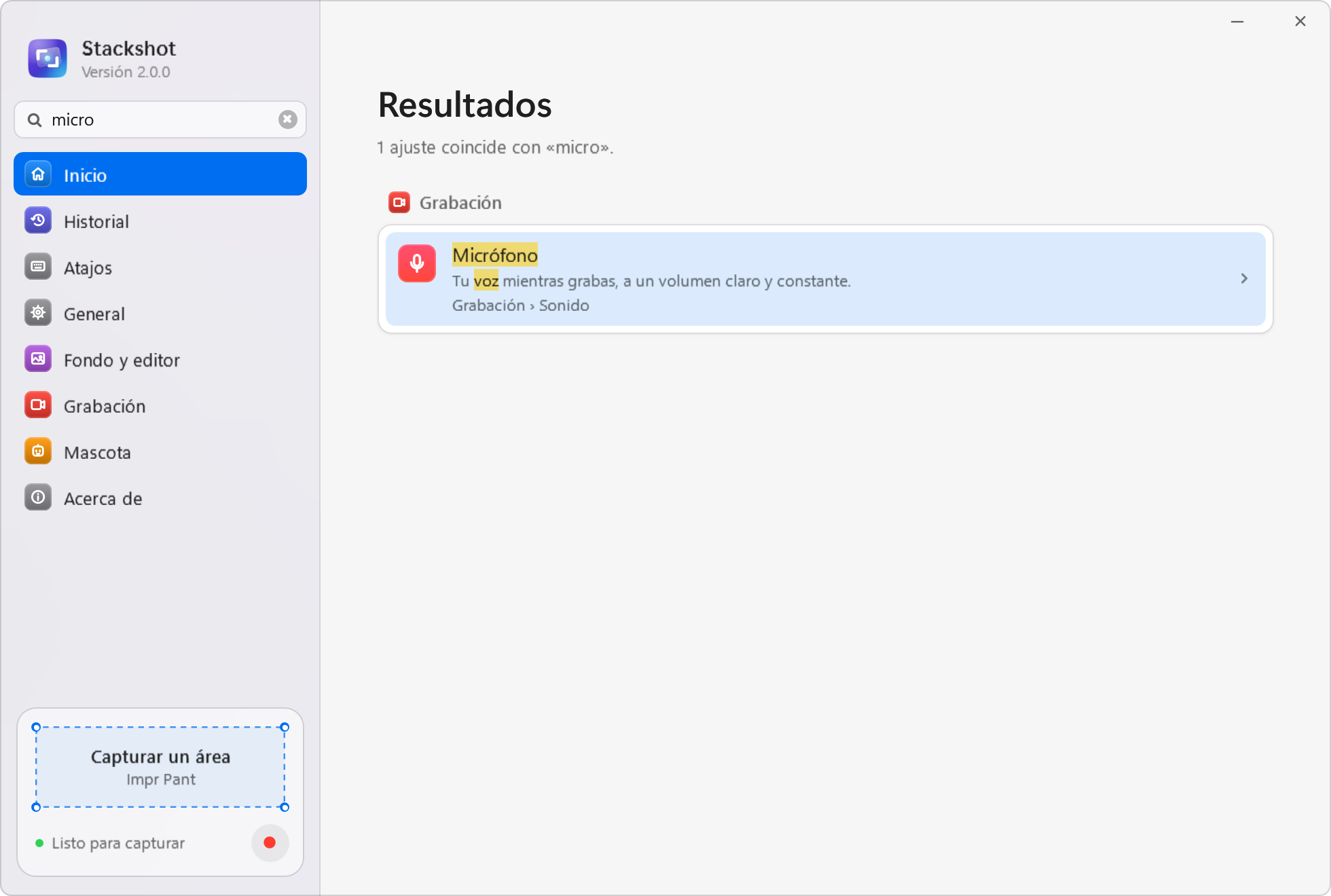
Accessible and readable. Screen readers (Narrator, NVDA) can read and use every control, everything works from the keyboard with a visible focus ring, and Windows contrast themes are followed. Stackshot's own notices, with action buttons where they help, replace the Windows tray balloons; they never take focus and stay out of captures and screen sharing.
Light or dark. Stackshot follows Windows, or you pick light or dark in General > Apariencia. Everything switches live, no restart needed.
Always one click away. Closing the window keeps Stackshot in the tray. A click on its icon opens a panel with every mode and its shortcut as keycaps, your four latest captures, and quick access to the window, your saved captures and the settings. The arrow keys and Enter work too.
Your capture sidekick, with 39 costumes. It can even live on your desktop.
 |
 |
Meet Pixel: twelve species, 23 colors, eye styles, dozens of hats, outfits and accessories, three personalities and friendship levels that unlock extras. It celebrates your captures and gives tips. You can switch it off in the settings, and an organization can switch it off for everyone.
If you want, it lives on your desktop: it walks above the taskbar, hops onto the window in front of you, rides along when you move it and naps when you are away. And it is invisible to screenshots, recordings and screen sharing, so it never ends up in your captures.
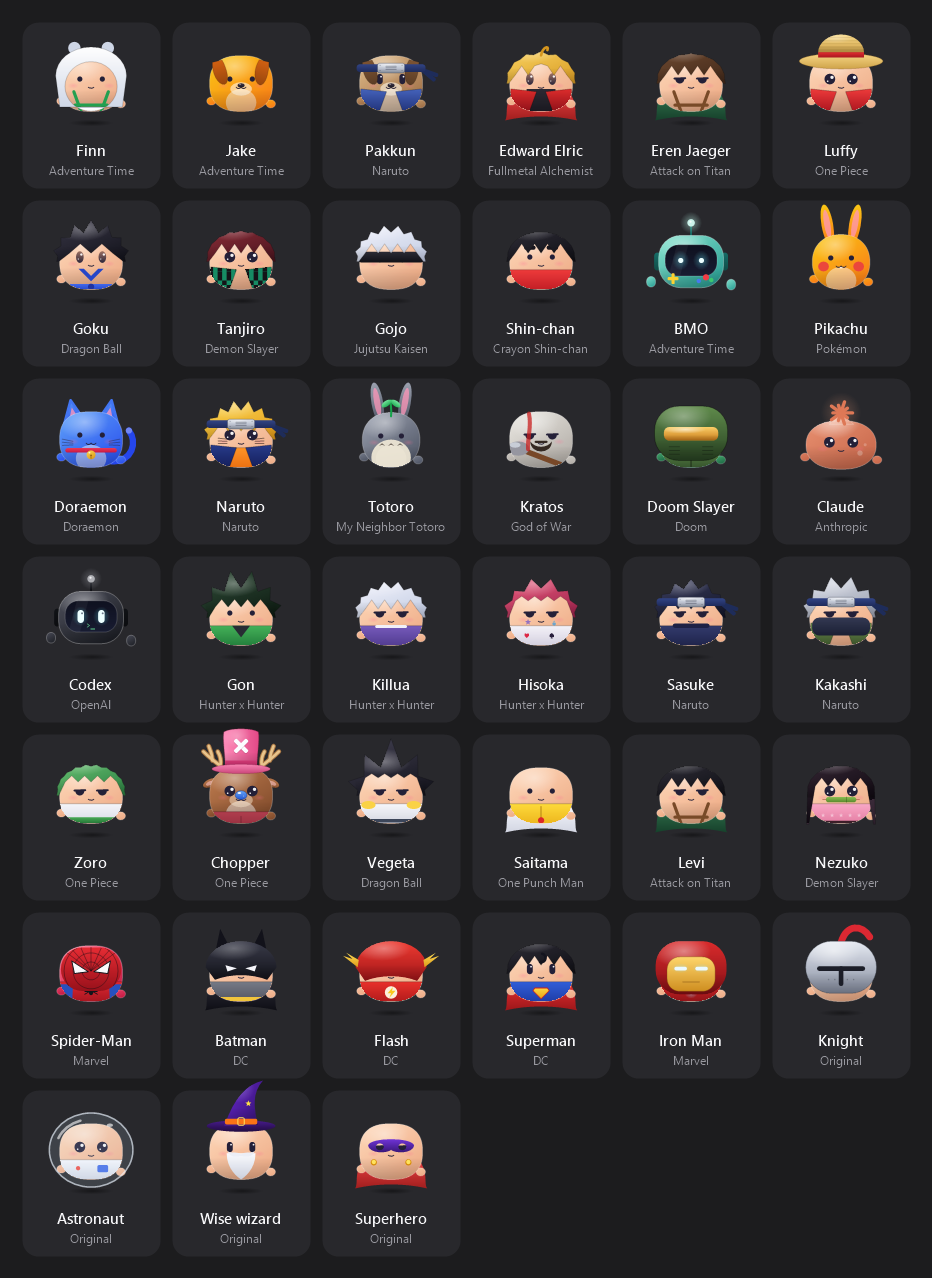
The Personajes (Characters) section dresses it up as fan tributes to characters from anime, series, comics and games, plus a few originals: 105 in total. One click and it becomes Pikachu, Chopper or Spider-Man; hovering a costume shows where it comes from.
The small things, all in the same 2.2 MB.
 Select first, decide after. Adjust the area, then capture, record or scroll. |
 Pin it above everything. Wheel to zoom, Ctrl + wheel to fade it. |
Select first, decide after. Turn on all-in-one mode (General > When capturing > After selecting an area > Show options) and the area stays on screen after you select it, with handles to move and resize it (the arrow keys work too) and a bar to choose Capture, Video, GIF or Scroll (capture, video, GIF or scrolling). Enter or a double click captures.
Pin it above everything. Pin any capture from its thumbnail and it floats above every window: the wheel zooms it, Ctrl+wheel changes its opacity, dragging moves it, and a double click or Esc closes it. Perfect for copying values from one window to another.
Copy text with OCR. Select an area with Ctrl+Shift+Alt+T and its text goes to the clipboard, ready to paste. Also from the Text button on every thumbnail, in the editor (Ctrl+Shift+C, Copy text) or on a pinned image. It uses the text recognition built into Windows 10 and 11, so nothing is downloaded and nothing leaves the computer. It prefers Spanish when that recognizer is installed; after that it prefers your own Windows languages among the Latin-script recognizers (a French user with en-US and fr-FR reads with fr-FR), then any other installed Latin-script recognizer in alphabetical order, then the interface language, your Windows profile languages, and finally any recognizer installed, so it works on every Windows that has text recognition at all. It reads small screen text and whole scrolling captures, line by line. If your Windows has no text recognition installed, Stackshot says so. (The sensitive-data redaction is stricter: it stops before anything non-Latin, because a bad reading there could let data through unchecked.)
Command line. A keypad button, a shortcut or a script can start any mode: see Command line and IT policies.
2.2 MB, no admin rights, no accounts or telemetry.
| 2.2 MB one executable |
0 admin rights |
0 accounts, cloud or telemetry |
1.6 ms per pointer move |
| Task | Measured |
|---|---|
| Area selection | 1.6 ms per pointer move on average at 1080p; only the changed area is redrawn |
| After a capture | The thumbnail appears immediately; the PNG is written in the background |
| Main window | Opens in about a quarter of a second; about 1.6% of one core while open and idle |
| Editor | Repaints in 4.5 ms while you draw |
| Covering sensitive data | About 0.4 s per capture at 1080p |
| Text from a tall scrolling capture | A 9000 px page is read in about a second |
| Executable | 2.2 MB, no runtime to install |
Stackshot installs to %LOCALAPPDATA%\Programs\Stackshot, adds a Start menu entry and appears in Settings > Apps for uninstalling. It runs on Windows 10 and 11 with the .NET Framework 4.8 that ships with Windows. New versions are offered inside the app; you can also run a newer Stackshot.exe over the old one. To try it without installing, run Stackshot.exe --portable: it runs in place, although its settings and temporary files still live in %LOCALAPPDATA%\Stackshot.
Because the executable is not code-signed yet, SmartScreen shows a warning the first time it runs (More info > Run anyway). On computers managed by an organization, SmartScreen may block it outright; in that case, ask your IT department to deploy the MSI package described below. Each release can be verified as described in SECURITY.md.
Every release also includes Stackshot.msi, a Windows Installer package that installs per user, in the user's context, without administrator rights.
| Action | Command or value |
|---|---|
| Install | msiexec /i Stackshot.msi /qn |
| Uninstall | msiexec /x Stackshot.msi /qn (or from Settings > Apps) |
| Options | STARTWITHWINDOWS=0 to skip starting with Windows, LAUNCHAPP=0 to skip opening it after installation |
| Detection | Product code from the package, or %LOCALAPPDATA%\Programs\Stackshot\Stackshot.exe with version ≥ the deployed one |
| Intune | Win32 app, install behaviour User, no restart required |
When the MSI manages the installation, upgrades and removal go through Windows Installer: a newer Stackshot.msi replaces the previous version and keeps the user's settings, and the app only announces new versions. Stackshot is closed and reopened automatically, so no restart is needed. Uninstalling removes the application and its data, but not the captures the user saved. An existing installation made with Stackshot.exe is adopted without leaving duplicate entries.
Stackshot.exe --install --startup --folder "D:\Screenshots"   # add --no-start to skip launching it
Stackshot.exe --uninstall --quiet
Stackshot.exe --capture <mode>, --open-home and --last-xml run in the copy that is already open (or start Stackshot if it is not), so a keypad button, a shortcut or a script can start a capture:
Stackshot.exe --capture region      # modes: region, repeat, screen, window, scroll, text, video, gif, markdown, pause
Stackshot.exe --open-home           # open the main window
Stackshot.exe --last-xml            # open the newest XML of the watched folder
Values under HKLM\SOFTWARE\Policies\Stackshot (or HKCU) let an IT department set up Stackshot for everyone. The user's own choices are kept for when a policy goes, and forced rows show Managed by your organization in the settings.
| Value | Effect |
|---|---|
SaveFolder |
Fixes the folder where captures are saved (a full path; variables such as %USERNAME% work) |
CheckUpdates = 0 |
Never looks for updates |
AutoUpdate = 0 |
Never installs updates on its own |
Mascot = 0 |
No mascot at all |
SensitiveAuto = 1 or 0 |
Always, or never, covers sensitive data in new captures |
HistorySearch = 0 |
The history does not read the text of captures |
Every option, exit code and a ready-to-import .reg example are in docs/it-policies.md.
| Shortcut | Action |
|---|---|
| Print Screen | Capture an area, a window or the whole screen |
| Ctrl+Print Screen | Capture the screen under the mouse |
| Alt+Print Screen | Capture the active window |
| Ctrl+Alt+Print Screen | Scrolling capture (press again to finish) |
| Ctrl+Shift+Alt+T | Copy the text in an area of the screen |
| Shift+Print Screen | Record video (press again to stop) |
| Ctrl+Shift+Print Screen | Record a GIF |
| Ctrl+Shift+Alt+M | Open the Markdown and XML viewer |
| (none by default) | Repeat the last area; assign a key in Shortcuts |
All shortcuts can be changed in the Shortcuts section of the main window. If Windows 11 reserves Print Screen for the Snipping Tool, Stackshot takes it back for the current user.
| Key | Action |
|---|---|
| F L R E T N H O P X C | Arrow, line, rectangle, ellipse, text, numbers, highlight, spotlight, pixelate, redact, crop |
| B | Presentation backdrop |
| 1–5, − + | Color, stroke width |
| Ctrl+Z, Ctrl+Y | Undo, redo |
| Ctrl+C, Ctrl+S, Ctrl+P | Copy, save, save as PDF |
| Ctrl+Shift+C | Copy the text in the image |
| Ctrl+Shift+X | Cover sensitive data |
| Ctrl+wheel, Ctrl+0, Ctrl+1 | Zoom, fit, 100% |
| Enter | Apply, copy and close |
| Delete, arrow keys | Delete or move the selected mark |
| Key | Action |
|---|---|
| Space or K, ← →, J L | Player: play or pause, skip 5 s, skip 10 s |
| , . | Player: previous or next frame |
| E S, G, C | Player: mark start and end of a piece, GIF of the piece, save the current frame |
| F7, Shift+F7 | XML comparison: next or previous difference |
| [ ] | XML viewer: previous or next XML in the folder |
| Ctrl+F | Main window: search settings (on History, search the history) |
%LOCALAPPDATA%\Stackshot; the index can be turned off or deleted at any time.%LOCALAPPDATA%\Stackshot\temp and are removed after an hour by default (configurable), never while they are still on screen.Details and the vulnerability reporting process are in SECURITY.md.
Yes. Stackshot is free and open source, under the MIT license, with no accounts and no telemetry. The code is on GitHub.
Windows 10 and Windows 11, with the .NET Framework 4.8 that ships with Windows and no administrator rights. Copying text and the history's text search use the text recognition built into Windows. Video and GIF recording need FFmpeg, which Stackshot downloads once.
No. It is a single 2.2 MB Stackshot.exe that installs for your user only, from its welcome window.
The executable is not signed with a code certificate yet, so SmartScreen warns the first time it runs. Click More info and then Run anyway. Updates downloaded by the app itself are checked with SHA-256 and a signature. Releases are built by GitHub Actions from this repository and published with a SHA-256 checksum and a signed build provenance attestation, so you can check that the file you downloaded is the one the workflow produced:
gh attestation verify .\Stackshot.exe --repo rubenitx/stackshot
Stackshot needs no administrator rights, and its source code is open for anyone to read. On computers where SmartScreen blocks unsigned applications, ask your IT department to deploy the MSI package. See SECURITY.md for everything it does on your computer.
No. There are no accounts, no cloud and no telemetry. Your captures stay on your computer, and so does the text it reads to search them in History.
Yes. It records the screen as MP4 or GIF at up to 60 fps, with computer sound, microphone and your webcam if you like. The Cine quality saves a lossless MKV. Afterwards you can trim the ends and change the speed. The first time you record, Stackshot offers to download FFmpeg.
Yes: an MSI package that does the same installation through Windows Installer, for managed computers. Registry policies let an IT department set it up for everyone.
From Settings > Apps, like any other, with Stackshot.exe --uninstall, or with msiexec /x Stackshot.msi if it was installed with the MSI. Uninstalling removes the application and its data, but not the captures you saved or recordings recovered after a crash. If Stackshot had taken Print Screen from the Snipping Tool, it gives it back.
Yes. Capturing, editing, copying text, the history, the viewers and the player need no connection. The internet is used only for the one-time FFmpeg download that video and GIF recording need, and for update checks, which you can turn off.
Captures you save (the Save button on a thumbnail, or from the editor) go to Pictures\Stackshot by default; change it in General > Saved captures, or an organization can fix it with a policy. Captures you don't save are temporary: they live in %LOCALAPPDATA%\Stackshot\temp and are removed after an hour by default (General > Recientes). Settings are in %LOCALAPPDATA%\Stackshot\settings.ini.
Running Stackshot.exe offers to install it for your user (no administrator rights, with updates inside the app). Stackshot.exe --portable runs it in place without installing. Organizations can deploy the MSI.
Yes. Stackshot speaks Spanish, English, German and Korean. A new installation follows the Windows display language (Korean on a Korean Windows; Spanish on a Spanish, Catalan, Galician or Basque Windows; German on a German one; English everywhere else), and Settings › General › Appearance › Language switches it at once (Automatic, Español, English, Deutsch, 한국어), at setup or from the tray. Those who already used Stackshot keep Spanish; if their Windows is in another language, the matching language is offered once, and nothing changes unless they accept. The English translation was contributed by @altmashnaveed and the Korean one by @Hobeom; German and the secrets redaction came from PR #13 by @aamershahzad2.
Visual Studio is not required; the C# compiler included with Windows is enough.
git clone https://github.com/rubenitx/stackshot
cd stackshot
.\build.ps1          # produces bin\Stackshot.exe
.\build.ps1 -Run     # builds and runs it without installing
| Folder | Contents |
|---|---|
src/ |
The application (C# 5, WinForms and WPF): capture, thumbnails, editor, recording, viewers, main window and installer |
assets/ |
Logo and icon, drawn in code by tools\make-logo.ps1 |
docs/ |
README media, generated from the real app over synthetic content: screenshots by tools\make-screenshots.ps1, the mascot reel and character sheet by tools\make-reel.ps1, and the film and feature clips by tools\make-film.ps1 |
Bug reports and suggestions are welcome in Issues. Code comments are in English; build instructions, conventions and an overview of the source are in CONTRIBUTING.md. Please report security issues privately as described in SECURITY.md.
MIT © 2026 Rubén Martínez.
FFmpeg is not bundled. It is downloaded separately, under its own license (GPL), only when recording video or GIF.
CleanShot X, ShareX, Snagit, Greenshot and Lightshot are mentioned only to say what kind of tool Stackshot is. Their names belong to their respective owners, and Stackshot is not affiliated with or endorsed by any of them.
The mascot costumes under Personajes (Characters) are non-commercial fan tributes drawn from scratch in the mascot's own style. The characters and names (Finn, Jake, BMO, Pakkun, Naruto, Sasuke, Kakashi, Edward Elric, Eren Jaeger, Levi, Luffy, Zoro, Chopper, Tanjiro, Nezuko, Gojo, Gon, Killua, Hisoka, Saitama, Shin-chan, Pikachu, Doraemon, Totoro, Kratos, Doom Slayer, Spider-Man, Iron Man, Batman, Superman, Flash, Claude, Codex, Kero, Kamina, Toothless, the Light Fury, Stormfly, Hookfang, Meatlug, Stitch, Kirby, Grogu, Eevee, Charmander, Bulbasaur, Squirtle, Jigglypuff, Snorlax, Gengar, Mew, Psyduck, Togepi, Meowth, Piplup, Mimikyu, Lucario, Dragonite, Ditto, Mewtwo, No-Face, Calcifer, the kodama, Yoshi, Pac-Man, the Creeper, the Among Us crewmate, Blinky, Pinky, Inky, Clyde, the Dragon Quest slime, Snoopy, Hello Kitty, Baby Groot, Rilakkuma, Pusheen, Pochacco, the Space Invaders crab, Goomba, Boo, Toad, the Super Mushroom and the green 1-Up mushroom, the ? block, Bob-omb, Chain Chomp, Red and the green pig from Angry Birds, the Knight from Hollow Knight, the companion cube from Portal, Bomberman, the Pooka, a Fall Guy, the Minecraft pig, the Metroid, Waddle Dee, Wilson and Willow from Don't Starve Together, and duplicants from Oxygen Not Included) belong to their respective owners, and Stackshot is not affiliated with or endorsed by any of them. If you hold the rights to one of them and want it removed, open an issue and it will be taken out.
rubenitx/stackshot is a public repo on GitHub by rubenitx. Free screenshot tool and screen recorder for Windows: floating thumbnails, quick editor, scrolling capture, text search with OCR, MP4 and GIF. Built with C#.
It declares the MIT license on GitHub.
Its maker tagged it for Windows. That is declared by the maker; Take My Repo has not tested it.
Open "Take it" on its page: Take My Repo writes an install plan for your machine and hands it to your AI agent (Claude Code, Codex or Cursor), which asks you before each step. Take My Repo has not tested it on any machine.
Its last change on GitHub was on 2026-11-23. Take My Repo does not judge from that whether it is maintained.
Nobody has reviewed it on Take My Repo yet, which says nothing about its quality.
Label Studio is a multi-type data labeling and annotation tool with standardized output format
An open-source native macOS screenshot and screen recording app. A CleanShot X alternative.
ShareX is a free and open-source application that enables users to capture or record any area of their screen with a single keystroke. It also supports uploading images, text, and various file types to a wide range of destinations.
🤗 Transformers: the model-definition framework for state-of-the-art machine learning models in text, vision, audio, and multimodal models, for both inference and training.


