
OntrackMounterGUI
A Windows WPF application for mounting legacy Ontrack Disk Manager volumes using ImDisk virtual disk driver
- 4
- 16 mo ago
Repo starrlord/OntrackMounterGUI, read from GitHub 17 min ago. starrlord has not joined Take My Repo.
In short
starrlord/OntrackMounterGUI is a public repo on GitHub by starrlord. A Windows WPF application for mounting legacy Ontrack Disk Manager volumes using ImDisk virtual disk driver. It declares no license on GitHub. Public does not mean open source: without a license, nobody is granted the right to reuse it. It is written mainly in C#, has 4 stars and last changed on 2025-08-15. Nobody has reviewed it on Take My Repo yet, which says nothing about its quality. Read from GitHub on 2026-11-24.
Ontrack Volume Mounter GUI
A Windows WPF application for mounting legacy Ontrack Disk Manager volumes using ImDisk virtual disk driver.
Overview
This application provides a graphical interface for mounting Ontrack volumes that were created using Ontrack Disk Manager, a legacy dynamic drive overlay tool used to overcome BIOS limitations for large hard drives on older systems.
Primary Use Case: Retro Computing & IDE-to-CF Adapters
This tool is particularly valuable for retro computing enthusiasts who use IDE-to-CompactFlash (CF) adapters in vintage machines. When using Ontrack Disk Manager on retro systems to bypass drive size limitations, this application provides an easy way to:
- Mount CF cards on modern systems without removing Ontrack overlay
- Transfer files to/from retro machines using CF cards as portable storage
- Access Ontrack partitions without needing XT-IDE or period-correct hardware
- Preserve retro system configurations while enabling modern file management
This eliminates the need to uninstall Ontrack Disk Manager from your retro machine just to access files, making it perfect for systems that rely on the overlay for proper operation but need modern file transfer capabilities.
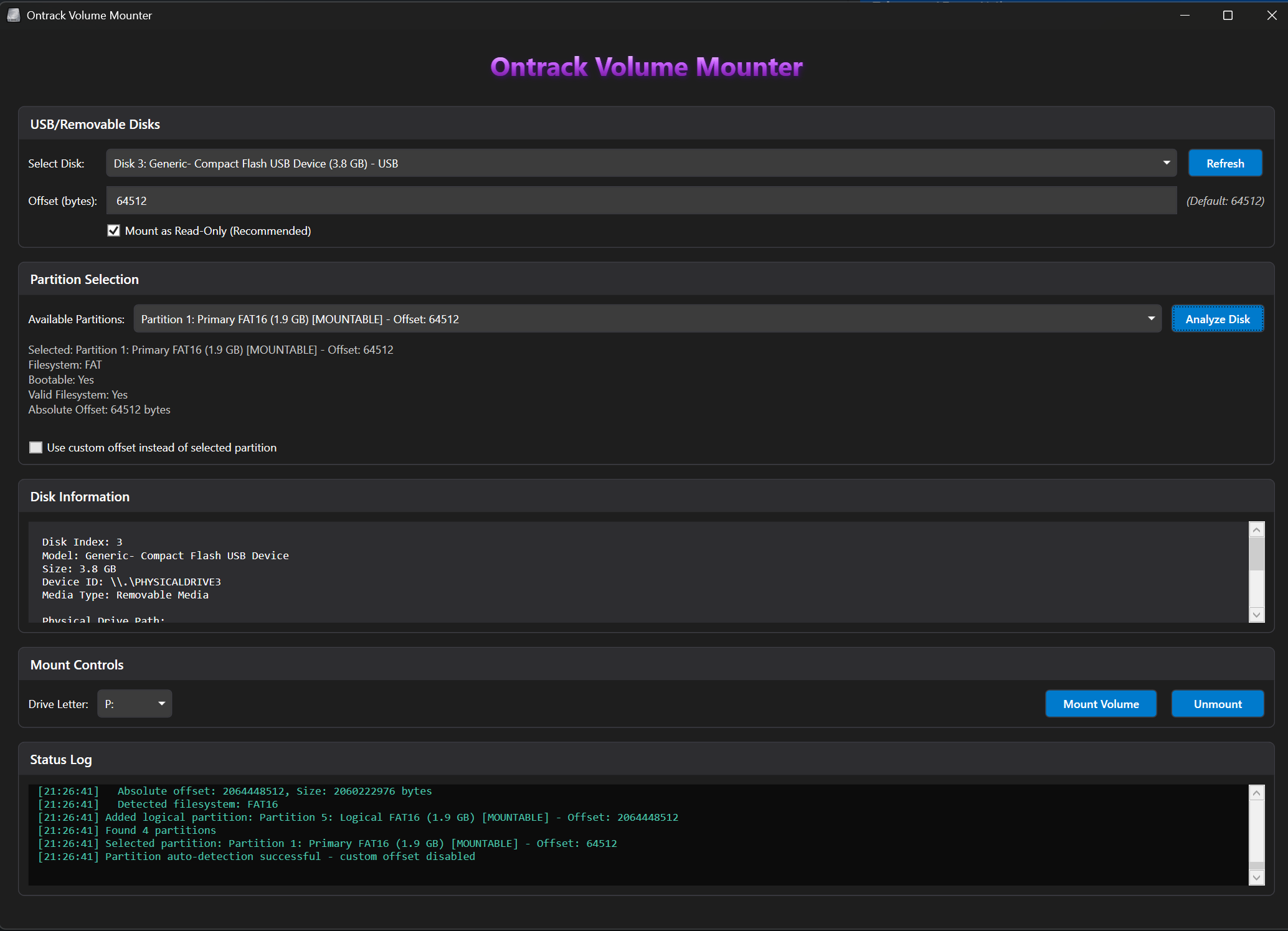 Modern dark theme interface with intuitive controls for mounting Ontrack volumes
Background
Ontrack Disk Manager was commonly used to bypass the 504MB drive size limitation in older BIOS systems by:
- Placing the original Master Boot Record (MBR) at sector 63
- Offsetting the partition boot record (PBR) by another 63 sectors
- Creating a total offset of 126 sectors (64,512 bytes) from the start of the disk
Modern Windows doesn't recognize these volumes due to their non-standard layout.
Features
Core Functionality
- ImDisk Integration: Uses ImDisk virtual disk driver for efficient mounting
- No Data Copying: Direct offset mapping without copying data
- Administrator Privileges: Automatically requests elevation for disk access
- Read-Only Safety: Defaults to read-only mounting to prevent data corruption
- Real-time Logging: Detailed status information during operations
- USB/Removable Disk Focus: Only scans USB and removable disks for safety
Advanced Partition Analysis
- Intelligent Partition Detection: Automatically analyzes disk structure to find all partitions
- Extended Partition Support: Handles complex partition layouts with logical drives
- Multiple Filesystem Detection: Identifies FAT12, FAT16, FAT32, and NTFS filesystems
- Smart Duplicate Prevention: Eliminates duplicate partition entries for cleaner interface
- Partition Status Indicators: Clear visual indicators for mountable vs non-mountable partitions
User Interface Enhancements
- Dark Theme UI: Modern dark interface with intuitive controls
- Smart Custom Offset Management: Auto-disables custom offset when partitions are detected
- Enhanced Partition Display: Shows partition type, size, and mountability status
- Contextual Tooltips: Helpful explanations for UI elements
- Accurate Size Calculations: Proper display of partition sizes in GB/MB/KB
- Status-Based Partition Labels:
[MOUNTABLE]- Partitions with valid filesystems[CONTAINER - NOT MOUNTABLE]- Extended partition containers[INVALID FILESYSTEM]- Corrupted or unknown filesystems
System Requirements
- Windows 10/11 (64-bit recommended)
- .NET 8.0 Runtime
- Administrator privileges (automatically requested)
- ImDisk Virtual Disk Driver (http://www.ltr-data.se/opencode.html/)
Installation & Usage
Quick Start
- Download and install ImDisk from http://www.ltr-data.se/opencode.html/
- Run
build_and_run.batto build and launch with administrator privileges - Or build manually:
dotnet build --configuration Release
Using the Application
- Select Disk: Choose the USB/removable disk containing the Ontrack volume
- Or Select Image File: Optionally click "Select Image..." to pick a raw disk image (.img, .dd, .raw). When an image is selected the physical disk list will be disabled; analyze the image to detect partitions or provide an offset manually.
- Verify Offset: Confirm the offset value (default: 64,512 bytes). If you selected an image, you can analyze it to auto-detect partition offsets.
- Choose Drive Letter: Select an available drive letter for mounting
- Mount Options: Keep "Read-Only" checked for safety (recommended)
- Mount: Click "Mount Volume" to mount the selected disk or image at the specified offset
- Access: The volume will be accessible through Windows Explorer
- Unmount: Use "Unmount" button when finished
Image support details and examples
- The app supports mounting raw disk images (e.g., *.img, *.dd, *.raw) as well as physical drives.
- Implementation notes (for developers):
- Image-file handling in the mount command: see
ImDiskManager.cs. - Analysis works directly from a FileStream so image files are analyzed by the existing code in
OntrackDiskManager.cs. - UI elements for image selection and integration live in
MainWindow.xamlandMainWindow.xaml.cs.
- Image-file handling in the mount command: see
- Example ImDisk commands (what the app constructs under the hood)
- Read-only mount of an image at default Ontrack offset:
imdisk -a -f "C:\path\to\image.img" -b 64512 -o ro -m X: - Read-write mount (not recommended without explicit confirmation):
imdisk -a -f "C:\path\to\image.img" -b 64512 -m X: - Mount a physical device with offset:
imdisk -a -f "\\.\PhysicalDrive3" -b 64512 -o ro -m X:
- Read-only mount of an image at default Ontrack offset:
Technical Details
Mounting Process
- Volume Analysis: Reads boot sector at specified offset to validate filesystem
- ImDisk Command Generation: Creates ImDisk command with physical disk path and offset
- Direct Offset Mapping: Maps virtual disk to physical disk at byte offset
- Drive Letter Assignment: Assigns specified drive letter automatically
Supported Filesystems
- FAT12/FAT16 (most common on Ontrack volumes)
- Basic validation for other filesystem types
Safety Features
- Read-Only Default: Prevents accidental modification
- Validation Checks: Verifies boot sector signatures before mounting
- Error Handling: Comprehensive error reporting and recovery
- Clean Unmounting: Proper cleanup of virtual disks
Building from Source
# Clone the repository
git clone <repository-url>
cd OntrackMounterGUI

# Build the project
dotnet build --configuration Release

# Run with administrator privileges
.\build_and_run.bat
Troubleshooting
Common Issues
- "ImDisk not found": Install ImDisk from the official website
- "Access Denied": Ensure running as Administrator (use build_and_run.bat)
- Mount Failures: Verify offset value is correct for your Ontrack volume
- Drive Letter Conflicts: Choose a different, unused drive letter
Advanced Troubleshooting
- Check status log for detailed error messages
- Verify physical disk path is correct
- Ensure disk contains valid Ontrack volume at specified offset
- Try different mounting methods if default approach fails
Project Structure
MainWindow.xaml/.cs- Main UI and application logicOntrackDiskManager.cs- Core disk analysis and mounting logicImDiskManager.cs- ImDisk command execution and managementapp.manifest- Administrator privilege configurationbuild_and_run.bat- Build and launch script
Limitations
- ImDisk Dependency: Requires ImDisk virtual disk driver
- Legacy Filesystems: Primarily designed for FAT-based Ontrack volumes
- Windows Only: Windows-specific implementation
- Administrator Required: Needs elevated privileges for disk access
License
This project is provided as-is for educational and recovery purposes. Use at your own risk.
Acknowledgments
- Based on research from "Mounting OnTrack Volumes in Windows" by ObsoleteMadness
- Uses ImDisk Virtual Disk Driver for efficient offset-based mounting
Questions
What is OntrackMounterGUI?
starrlord/OntrackMounterGUI is a public repo on GitHub by starrlord. A Windows WPF application for mounting legacy Ontrack Disk Manager volumes using ImDisk virtual disk driver.
Is OntrackMounterGUI open source?
It declares no license on GitHub. Public does not mean open source: without a license, nobody is granted the right to reuse it.
Does OntrackMounterGUI run on macOS, Windows or Linux?
Its maker has not tagged a system, so it is unknown here. Its README says what it needs.