
flutter
Flutter makes it easy and fast to build beautiful apps for mobile and beyond
- 181k
- Dart
- BSD-3-Clause
- 2 h ago
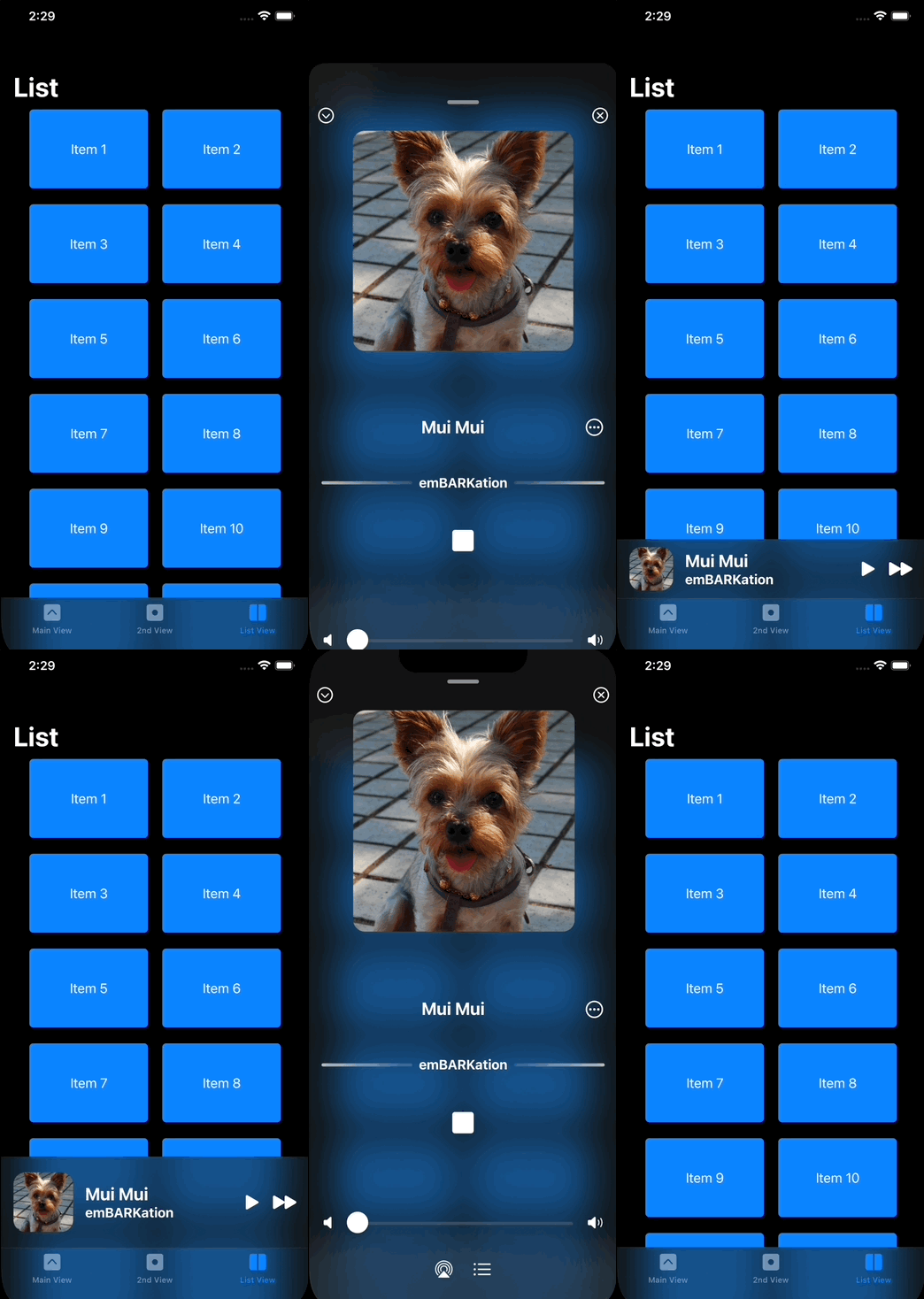
SwiftUI view that minimizes to the bottom of the screen similar to the mini-player in Apple Music or Spotify.
Repo timepod-dev/MinimizableView, read from GitHub 1 min ago. timepod-dev has not joined Take My Repo.
timepod-dev/MinimizableView is a public repo on GitHub by timepod-dev. SwiftUI view that minimizes to the bottom of the screen similar to the mini-player in Apple Music or Spotify. It declares the MIT license on GitHub. It is written mainly in Swift, has 138 stars and last changed on 2024-07-17. Nobody has reviewed it on Take My Repo yet, which says nothing about its quality. Read from GitHub on 2026-11-23.
Flutter makes it easy and fast to build beautiful apps for mobile and beyond
:books: 免费的计算机编程类中文书籍,欢迎投稿
MinimizableView is a simple SwiftUI view for iOS and iPadOS that can minimize like the mini-player in the Spotify or Apple Music app.
Breaking changes in version 2.0. See details below in the version history
Special thanks to Kavsoft (see here) - I used parts of their MiniPlayer content in the example. The framework is my own creation though.
This repo only contains the Swift package, no example code. Please download the example project here. You need to add the MinimizableView package either through cocoapods or the Swift Package Manager (see below - Installation).
Check out the examples for details.
Installation through the Swift Package Manager (SPM) or cocoapods is recommended.
SPM: Select your project (not the target) and then select the Swift Packages tab. Click + and type MinimizableView - SPM should find the package on github.
Cocoapods:
platform :ios, '14.0'
target '[project name]' do pod 'MinimizableView' end
Check out the version history below for the current version.
Make sure to import MinimizableView in every file where you use the MinimizableView or MinimizableViewHandler
import MinimizableView
Check out the following example. This repo only contains the Swift package, no example code. Please download the example project here.

Simply attach the .minimizableView modifier to your main view, e.g. a TabView. To trigger presentation, dismissal, minimization and expansion, you need to call the respective functions of the minimizableViewHandler: present(), dismiss(), minimize() and expand(). It is advisable to call toggleExpansionState() on the minimizableViewHandler whenever you use a tapGesture to toggle the expansion state.
If you don't want a separate compact view, just pass an EmptyView into the compactView closure of the initialiser. The code in the body of MinimizableView checks if compactView is an EmptyView and in that case does not display it. if there is no compact view, the top of your content will be shown at the bottom of the screen in minimized state. Use the minimizableViewHandler as EnvironmentObject in your content view - e.g. to remove and insert certain subviews (or to change their opacity) once the minimized property changes (see the example below).
You also need to attach the minimizableViewHandler as environment object to the MinimizableView.
NEW in version 2.4: update the miniViewBottomMargin parameter dynamically as the height of your tab bar changes. This is achieved with the help of TabBarAccessor. The height can change depending on the device and resizing of the app window (e.g. with stage manager on iPad).
struct RootView: View {

    @ObservedObject var miniHandler: MinimizableViewHandler = MinimizableViewHandler()
    @State var selectedTabIndex: Int = 0
    @State var miniViewBottomMargin: CGFloat = 0
    @GestureState var dragOffset = CGSize.zero
    @Namespace var namespace

    var body: some View {
        GeometryReader { proxy in

                TabView(selection: self.$selectedTabIndex) {

                    Button(action: {
                        print(proxy.safeAreaInsets.bottom)
                        self.miniHandler.present()

                    }) { TranslucentTextButtonView(title: "Launch Minimizable View", foregroundColor: .green, backgroundColor: .green)}.disabled(self.miniHandler.isPresented)

                        .tabItem {
                            Image(systemName: "chevron.up.square.fill")
                            Text("Main View")
                    }.tag(0)
                    .background(TabBarAccessor { tabBar in        // add to update the minimizedBottomMargin dynamically!
                            self.miniViewBottomMargin = tabBar.bounds.height - 1
                        })

                    Text("More stuff").tabItem {
                        Image(systemName: "dot.square.fill")
                        Text("2nd View")
                    }.tag(1)

                    ListView(availableWidth: proxy.size.width)
                        .tabItem {
                        Image(systemName: "square.split.2x1.fill")
                        Text("List View")
                    }.tag(2)


                }.background(Color(.secondarySystemFill))
                .statusBar(hidden: self.miniHandler.isPresented && self.miniHandler.isMinimized == false)
                .minimizableView(content: {ContentExample(animationNamespaceId: self.namespace)},
                  compactView: {
                    EmptyView()  // replace EmptyView() by CompactViewExample() to see the a different approach for the compact view
                }, backgroundView: {
                    self.backgroundView()},
                    dragOffset: $dragOffset,
                    dragUpdating: { (value, state, transaction) in
                        state = value.translation
                        self.dragUpdated(value: value)

                }, dragOnChanged: { (value) in
                        // add some custom logic if needed
                },
                    dragOnEnded: { (value) in
                    self.dragOnEnded(value: value)
                }, minimizedBottomMargin: self.miniViewBottomMargin, settings: MiniSettings(minimizedHeight: 80))
                .environmentObject(self.miniHandler)

        }

        //
    }


    func backgroundView() -> some View {
        VStack(spacing: 0){
            BlurView(style: .systemChromeMaterial)
            if self.miniHandler.isMinimized {
                Divider()
            }
        }.cornerRadius(self.miniHandler.isMinimized ? 0 : 20)
        .onTapGesture(perform: {
            if self.miniHandler.isMinimized {
                self.miniHandler.expand()
                //alternatively, override the default animation. self.miniHandler.expand(animation: Animation)
            }
        })
    }


    func dragUpdated(value: DragGesture.Value) {

        if self.miniHandler.isMinimized == false && value.translation.height > 0   { // expanded state

            self.miniHandler.draggedOffsetY = value.translation.height  // divide by a factor > 1 for more "inertia" if needed

        } else if self.miniHandler.isMinimized && value.translation.height < 0   {// minimized state
            self.miniHandler.draggedOffsetY = value.translation.height  // divide by a factor > 1 for more "inertia" if needed

        }
    }

    func dragOnEnded(value: DragGesture.Value) {

        if self.miniHandler.isMinimized == false && value.translation.height > 90  {
            self.miniHandler.minimize()

        } else if self.miniHandler.isMinimized &&  value.translation.height < -60 {
                  self.miniHandler.expand()
        }
       withAnimation(.
timepod-dev/MinimizableView is a public repo on GitHub by timepod-dev. SwiftUI view that minimizes to the bottom of the screen similar to the mini-player in Apple Music or Spotify.
It declares the MIT license on GitHub.
Its maker tagged it for macOS. That is declared by the maker; Take My Repo has not tested it.
Open "Take it" on its page: Take My Repo writes an install plan for your machine and hands it to your AI agent (Claude Code, Codex or Cursor), which asks you before each step. Take My Repo has not tested it on any machine.
f.k.a. Awesome ChatGPT Prompts. Share, discover, and collect prompts from the community. Free and open source — self-host for your organization with complete privacy.
An open-source remote desktop application designed for self-hosting, as an alternative to TeamViewer.
Free, open-source Spotify alternative for Windows and macOS: the YouTube Music catalog and your own files in one app, with no ads, no subscription, word-synced lyrics and listen-together Rooms.
This project is dedicated to collecting high-quality macOS software and organizing them systematically by different categories for easy search and use.
Its last change on GitHub was on 2024-07-17. GitHub counts 0 open issues and pull requests. Take My Repo does not judge from that whether it is maintained.
Nobody has reviewed it on Take My Repo yet, which says nothing about its quality.
Take My Repo cannot say: it does not audit code and has not run MinimizableView. What is known comes from GitHub. It declares the MIT license on GitHub. Its last change was on 2024-07-17. It has 138 stars, which measure popularity, not safety. Nobody has reviewed it on Take My Repo yet, which says nothing about its quality. Read the source before you run it. With "Take it", your AI agent shows each step and asks you before running it; README text is treated as data, not as instructions.