
waveflow-quickplay
⚡ WaveFlow QuickPlay — A lightweight, native music player for Windows & Linux. Play audio files instantly, without library scans or accounts. FLAC, Opus, DSD, synced lyrics and file-manager integration. Powered by WaveFlow.
- 3
- GPL-3.0
- 13 h ago
Repo InstaZDLL/waveflow-quickplay, read from GitHub 4 h ago. InstaZDLL has not joined Take My Repo.
In short
InstaZDLL/waveflow-quickplay is a public repo on GitHub by InstaZDLL. ⚡ WaveFlow QuickPlay — A lightweight, native music player for Windows & Linux. Play audio files instantly, without library scans or accounts. FLAC, Opus, DSD, synced lyrics and file-manager integration. Powered by WaveFlow. It declares the GPL-3.0 license on GitHub. It is written mainly in Rust, has 3 stars and last changed on 2026-11-23. Nobody has reviewed it on Take My Repo yet, which says nothing about its quality. Read from GitHub on 2026-11-23.



WaveFlow QuickPlay
Double-click. Just listen.
A small, fast, native music player for Windows, Linux and macOS — powered by WaveFlow.
Sometimes you just want to play a song. No library to manage, no account to create, no waiting for a collection to load.
QuickPlay opens your audio files in a compact player: FLAC, Opus, DSD and the rest, synced lyrics, album artwork, a playlist. From the file manager's right-click menu or a double-click, with the window up in under 300 ms.
Your files. Your music. Nothing in the way.
Install · Features · Screenshots · Keyboard · Build · Architecture
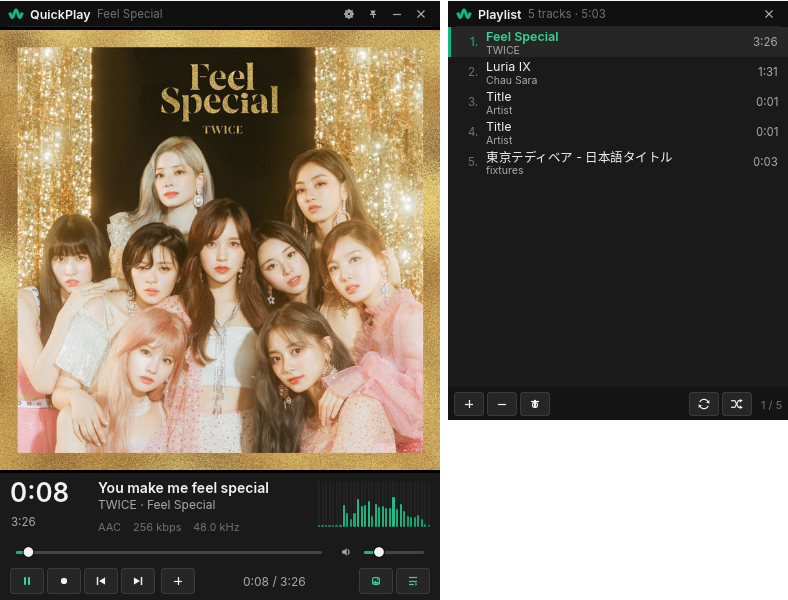
Artwork mode · synced lyric in place of the title, spectrum, and the playlist docked beside the player
Install
Download the package for your system from the latest release:
- Windows:
waveflow-quickplay_<version>_x64-setup.exe. A per-user installer, no administrator rights, that also adds Play with QuickPlay and Add to QuickPlay playlist to the right-click menu of audio files and folders, and removes them on uninstall. It is signed with WaveFlow's self-signed certificate, so SmartScreen may warn once. - Linux: a
.debfor Debian / Ubuntu, an.rpmfor Fedora / RHEL / openSUSE, or an.AppImagefor any distribution (make it executable and run it), each for x86_64 PCs (amd64,x86_64in the file name) and, from 1.5.0, for Arm ones such as a Raspberry Pi 4 or 5 running a 64-bit system (arm64,aarch64). The.deband the.rpminstall the desktop entry, so QuickPlay appears in "Open with" for audio files. An AppImage installs nothing: run it once with--registerfor the same entry, pointing at the.AppImagefile, and again if you move that file. - macOS:
waveflow-quickplay_<version>_macos-universal.dmg, one app for Apple silicon and Intel Macs, macOS 11 or later. Open it and drag WaveFlow QuickPlay to Applications. The app is signed ad hoc, not by an Apple Developer ID, so macOS blocks the first launch: open System Settings › Privacy & Security and choose Open Anyway (on macOS 14 and earlier, right-click the app and choose Open). This is asked on the first launch of each version you download: every release is signed anew.
Then double-click a track, or right-click it. That is the whole setup. On macOS, right-click a track and choose Open With › WaveFlow QuickPlay.
From the command line
waveflow-quickplay "C:\Music\song.flac"
waveflow-quickplay song1.flac song2.mp3 song3.m4a
waveflow-quickplay "C:\Music\Some Album"      # folders are walked (4 levels)
waveflow-quickplay --enqueue more.flac        # append to the running player's queue
waveflow-quickplay --register                 # file-manager integration, current user
waveflow-quickplay --unregister
On Windows and Linux, a hand-copied binary (see Build and test) needs --register once, and again if it moves: the registry entries and the .desktop file point at the executable's path. The installer does it for you. An AppImage needs it too, and its entry points at the .AppImage file.
WaveFlow Desktop or QuickPlay?
|
WaveFlow Desktop Your complete music experience. Organize, discover, customize and enjoy your entire library: EQ, crossfade, gapless, ReplayGain, device selection, exclusive output. |
WaveFlow QuickPlay Just want to play a file? Open it and listen. No library, no setup, no distractions. Same decoders as the desktop app, in a window the size of a notification. |
They are complementary, not two sizes of the same thing: QuickPlay deliberately leaves the listening features to the desktop app and does one job, playing the file in front of you.
Features
🎧 Playback
- Every format WaveFlow plays: MP3, FLAC, WAV, AIFF, Vorbis, Opus, AAC, ALAC, WavPack, Monkey's Audio (APE), DSF and DFF, with the desktop app's own decoders (WaveFlow 2.0.0). Hybrid (lossy) WavPack and floating-point APE are not decoded.
- Files, folders and playlists from the command line, a drop on either window or the open dialog; folders are walked four levels deep without blocking the window. An
.m3uor.m3u8playlist queues its files in its own order, whether it gives them as absolute paths, paths relative to it orfile://URLs, and whatever code page wrote it; web addresses and files that are not there are left out. A network share (\\host\share) is followed only from a playlist on that same host, since on Windows merely opening one can make Windows authenticate to that host with your current credentials; mapped drives always work. - Instant pause, clean seeks, no clicks or pops: the audio thread never waits on the interface.
- Auto-advance with the track's tail played out; broken files are skipped and flagged in the playlist.
- Spectrum timed to the output clock, so the bars follow what you hear.
- Live bitrate: the format chip shows the bitrate of what is playing, measured each second from the packets being decoded rather than the whole file's average, so a FLAC that opens quietly reads low there and its real rate once the music starts. DSD shows its constant rate.
- Continue in WaveFlow: when WaveFlow Desktop 2.0.0-beta.1 or later is installed, the button with its logo hands the queue, the track, the position and the play or pause state over to it, and QuickPlay closes. WaveFlow picks up at the same spot, from its library when the files are in it.
🖼️ Two sizes, one window
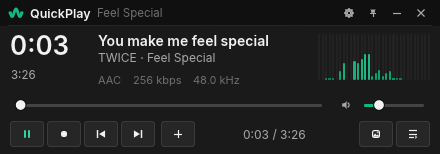
- Compact: clock, title, format, seek, volume and transport in 440 × 154 points. Height locked, width free.
- Artwork: the cover above the controls, edge to edge, freely resizable. Press
Aor the artwork button to switch. - Custom title bar with settings, pin (always on top), minimize and close; window size and mode are remembered.
📋 Playlist
- A second window beside the player, fast with long queues, showing number, title, artist and duration, the current row in the accent colour and failed rows flagged.
- Docked: it follows the player when it moves or widens (drag the playlist to change where it sits), minimizes and restores with it, and shares its taskbar button.
- Double-click to play, right-click for Play / Remove,
Deleteto remove, add / remove / clear in the toolbar. - Repeat and shuffle in the toolbar: one press repeats the playlist, a second the current track; shuffle plays every track once before any comes again, and Previous walks back through what played. Both are remembered.
🎤 Lyrics
- A
song.lrcnext tosong.flacis read when the track starts; the current line replaces the title as the song plays, and an empty line, or the lead-in, shows the title again, as PotPlayer does. [offset:]and enhanced-LRC word stamps are honoured; nothing is fetched from the network.- A lyric line wider than its column scrolls at the pace of its own time: it holds for a moment, moves so that its end is on screen before the next line starts, and stays there. A long title holds, scrolls across and comes round again.
🖱️ From the file manager
- One instance: a second launch hands its files to the open player and exits. Plain launch replaces the queue and plays,
--enqueueappends; Explorer's "Play with" / "Add to playlist" hand a whole multi-selection to one process. --registeradds Play with QuickPlay and Add to QuickPlay playlist to the context menu of every audio extension, of.m3u/.m3u8playlists and of folders, plus an "Open with" entry and a Settings › Default apps entry, for the current user and without administrator rights. Once QuickPlay is the default player for a format, its files show a WaveFlow document icon with the format (FLAC, MP3, …). If you made QuickPlay the default player before these icons came, pick it again for each format (Settings › Default apps, or Open with › Always) to get them: Windows keeps the earlier choice, which has one icon for every format. On Linux it writes a.desktopentry with the audio and M3U MIME types.--unregisterremoves it all.- The default handler for the extensions is left to you (Settings › Default apps, or
xdg-mime default app.waveflow.quickplay.desktop audio/flac). - macOS: the app declares the audio formats it plays, so once it is in Applications Finder lists it under Open With for them, a multi-selection included. To make it the default player for a format, select a file, Get Info › Open with › WaveFlow QuickPlay › Change All. DSF, DFF, WavPack and APE files then show the same WaveFlow document icon with the format as on Windows, everywhere. The formats macOS itself knows (FLAC, MP3, AAC, playlists…) keep macOS's own icon in the icon and list views (or the cover, with icon previews on), even with icon previews turned off; for them the WaveFlow icon shows in the Get Info window (its header and title bar). Finder has no per-app menu entries, so there is no Add to playlist there.
⚙️ Settings and languages
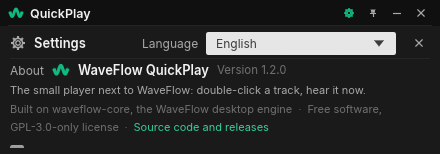
- The gear in the title bar opens a page in place of the controls: the interface language, an about block with the version, the licence and the link to this repository, and the update check.
Escor its close button brings the controls back. - Updates: at launch QuickPlay looks for a newer release. The Windows installer's copy, the macOS app and the AppImage download it in the background, check it against the release key and install it when you close QuickPlay: the next launch is the new version, and nothing that plays is cut. A
.debor an.rpmonly says that the new version is out, with a link to it in the settings, and your package manager installs it. Check for updates at launch, at the bottom of the settings page, turns the check off. - Eight languages: English, French, German, Spanish, Italian, Simplified Chinese, Japanese and Korean. The system language is followed by default; a choice is kept in the settings file.
- The file-manager entries follow the interface language: on Windows, picking another language rewrites the context-menu labels of the registered QuickPlay; the Linux desktop entry carries all eight and the desktop picks.
✨ And also
- Inter and Noto Sans CJK are embedded: Japanese, Korean and Chinese titles, and the interface in those languages, render the same on every machine.
- Preferences live in their own file,
<config dir>/waveflow-quickplay/settings.json, never read by the desktop app. RUST_LOG=debugturns the log up;QUICKPLAY_CAPTURE_DIR=<dir>writes a PNG of the player window after start, for displays that cannot be grabbed from outside such as GNOME on Wayland.QUICKPLAY_WAVEFLOW=<path>points the WaveFlow button at another executable, such as a development build, without the version check.QUICKPLAY_UPDATE_URL=<url>reads the update manifest from there instead of GitHub and R2, in any build, and is the only way a debug build looks for updates; the packages it lists must still be signed with the release key.
Screenshots
 |
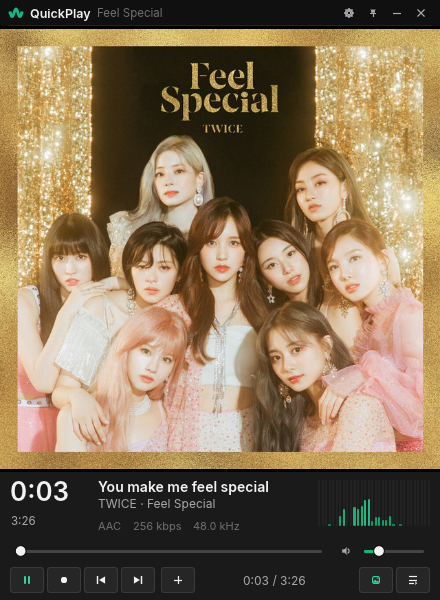 |
| Compact · the whole player in 440 × 154 | Artwork · the cover edge to edge, window freely resizable |
 |
|
| Settings · language and about, in the same 154 points |
Keyboard
| Key | Action |
|---|---|
| Space | Play / pause |
| N / P | Next / previous |
| ← / → (Shift: 30 s) | Seek ±5 s |
| ↑ / ↓ | Volume ±5 % |
| A | Show / hide the artwork |
| L | Show / hide the playlist |
| S (or click it) | Show / hide the spectrum |
| T | Always on top |
| R | Repeat: all, one track, off |
| H | Shuffle |
| Ctrl+O | Open files |
| Delete (playlist) | Remove the selected track |
| Esc | Close the settings page |
Shortcuts work whichever of the two windows has focus.
Build and test
Requirements: Rust 1.98 (pinned by rust-toolchain.toml
Questions
What is waveflow-quickplay?
InstaZDLL/waveflow-quickplay is a public repo on GitHub by InstaZDLL. ⚡ WaveFlow QuickPlay — A lightweight, native music player for Windows & Linux. Play audio files instantly, without library scans or accounts. FLAC, Opus, DSD, synced lyrics and file-manager integration. Powered by WaveFlow.
Is waveflow-quickplay open source?
It declares the GPL-3.0 license on GitHub.
Does waveflow-quickplay run on macOS, Windows or Linux?
Its maker tagged it for Windows and Linux. That is declared by the maker; Take My Repo has not tested it.


