
waveflow-server
🎵 Your music, everywhere you listen — a self-hosted music server with a built-in web player, OpenSubsonic support, smart discovery and one-binary deployment.
- 9
- AGPL-3.0
- 13 h ago
Repo InstaZDLL/waveflow-server, read from GitHub 4 h ago. InstaZDLL has not joined Take My Repo.
In short
InstaZDLL/waveflow-server is a public repo on GitHub by InstaZDLL. 🎵 Your music, everywhere you listen — a self-hosted music server with a built-in web player, OpenSubsonic support, smart discovery and one-binary deployment. It declares the AGPL-3.0 license on GitHub. It is written mainly in Rust, has 9 stars and last changed on 2026-11-23. Nobody has reviewed it on Take My Repo yet, which says nothing about its quality. Read from GitHub on 2026-11-23.
Similar repos
scrcpy
Display and control your Android device


Your music, everywhere you listen.
A self-hosted music server in one Rust binary — with a web player built in, and the OpenSubsonic API your apps already speak.
Point WaveFlow Server at the folders where your music lives. It builds your library, streams it to your browser,
your phone and your desktop, and converts on the fly when the connection is tight.
No PostgreSQL, no Redis, no identity provider: one binary, one database file, one key file.
Your files. Your server. Every player.
Install · Features · Screenshots · Apps · Documentation · Develop
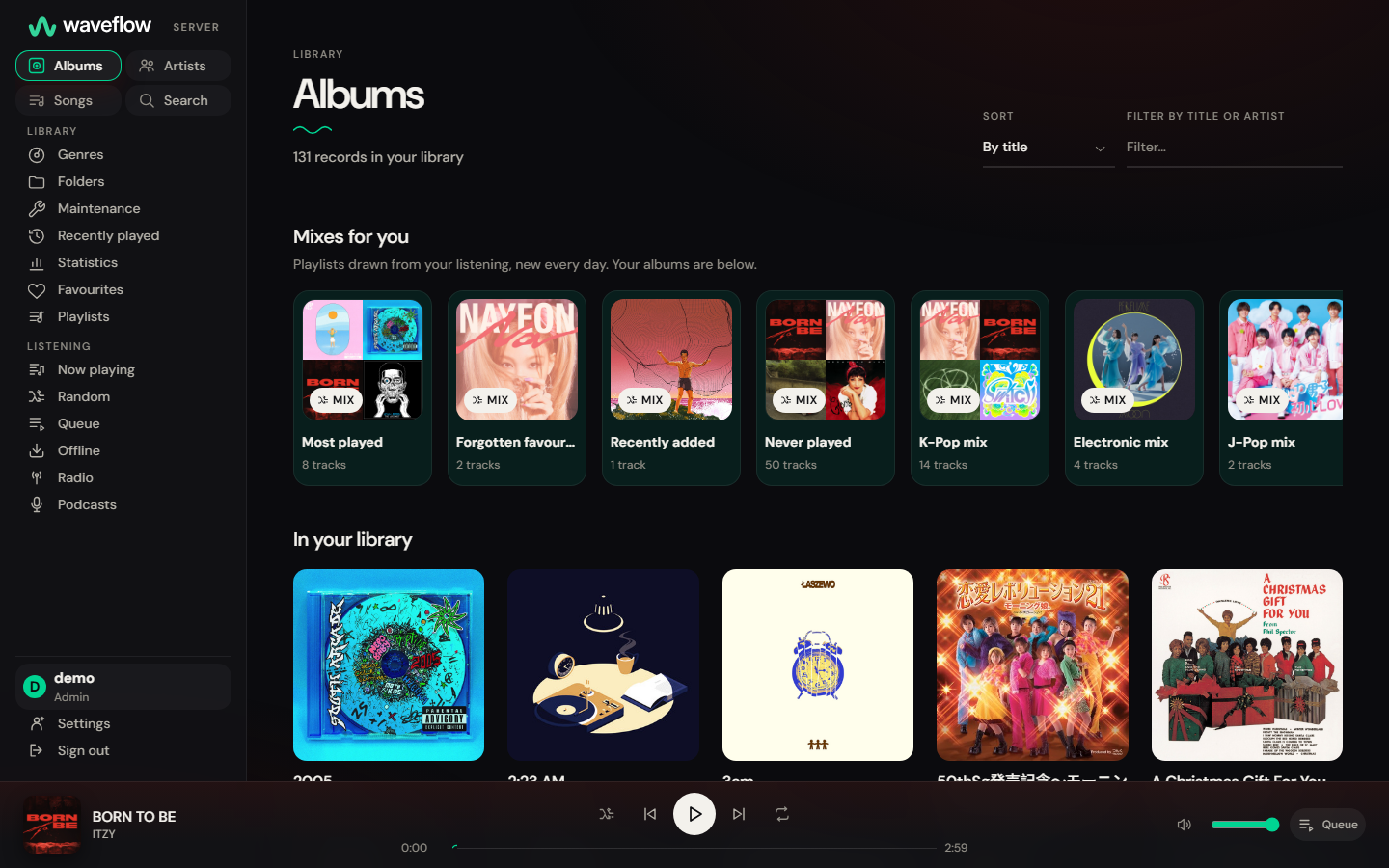
The web player · your library, with mixes made from what you actually listen to
Why WaveFlow Server
| 📦 Up in a minute | One container, on a server, a NAS or a Raspberry Pi 4 or 5. The catalogue lives in a single SQLite file, kept with its key: back up the two together, with the artwork, canvas and podcast folders beside them, as the operations guide explains. |
| 📱 Your apps already work | Subsonic players connect as they are, with no plugin. Symfonium, Feishin, DSub and Juliet have each been run against the server, and the dated results are published, limits included. |
| 🌐 A player in the browser | No app to install: open the server's address and listen, on a desktop or a phone, and keep tracks for when you are offline. |
| 🔁 Nothing moves under you | Album and artist IDs are derived from your tags, so rebuilding the catalogue gives the same IDs back: the links and references your apps hold keep working. |
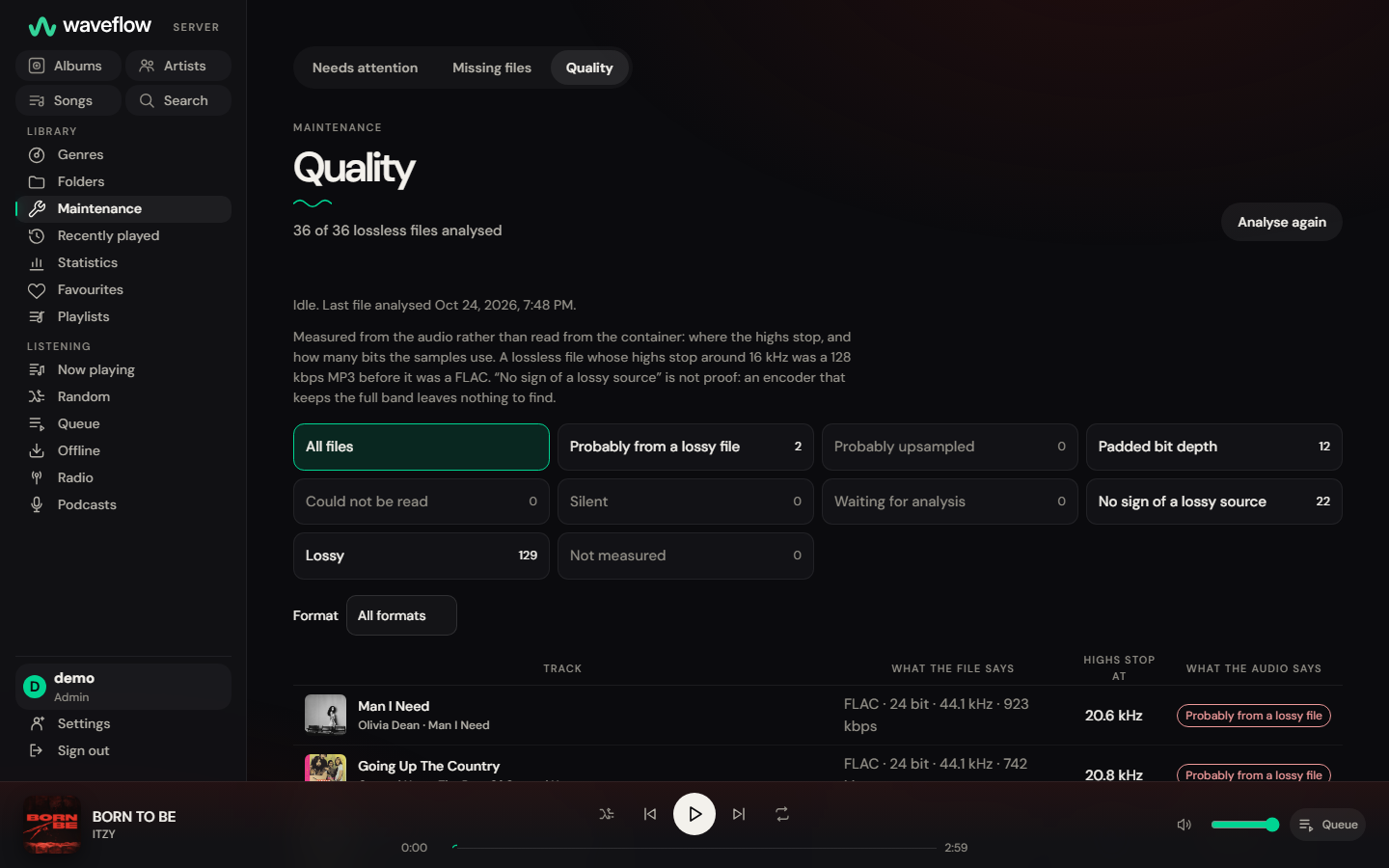
| 🔍 Knows what your files really are | The audio of every lossless file is measured, and a FLAC that was once an MP3 is shown for what it is. |
| 🛡️ Yours, and only yours | Your audio files are never rewritten. Nothing leaves the server unless you switch it on, and every outbound request is listed. |
Features
🎧 Listening
- A complete web player compiled into the server: albums, artists, songs, genres, folders, search as you type, queue, history and favourites.
- Mixes made from your own listening, listening statistics, and similar songs drawn from your library.
- Synced lyrics from the files or their
.lrc, with a full-screen immersive view; LRCLIB fills the gaps once you switch it on. - Streams the original, or converts on the fly to MP3, Opus or AAC, with seeking inside a conversion and server-side volume levelling (ReplayGain).
- Offline listening for the tracks you keep, installable as an app on a phone, keyboard shortcuts, media keys and lock-screen controls.
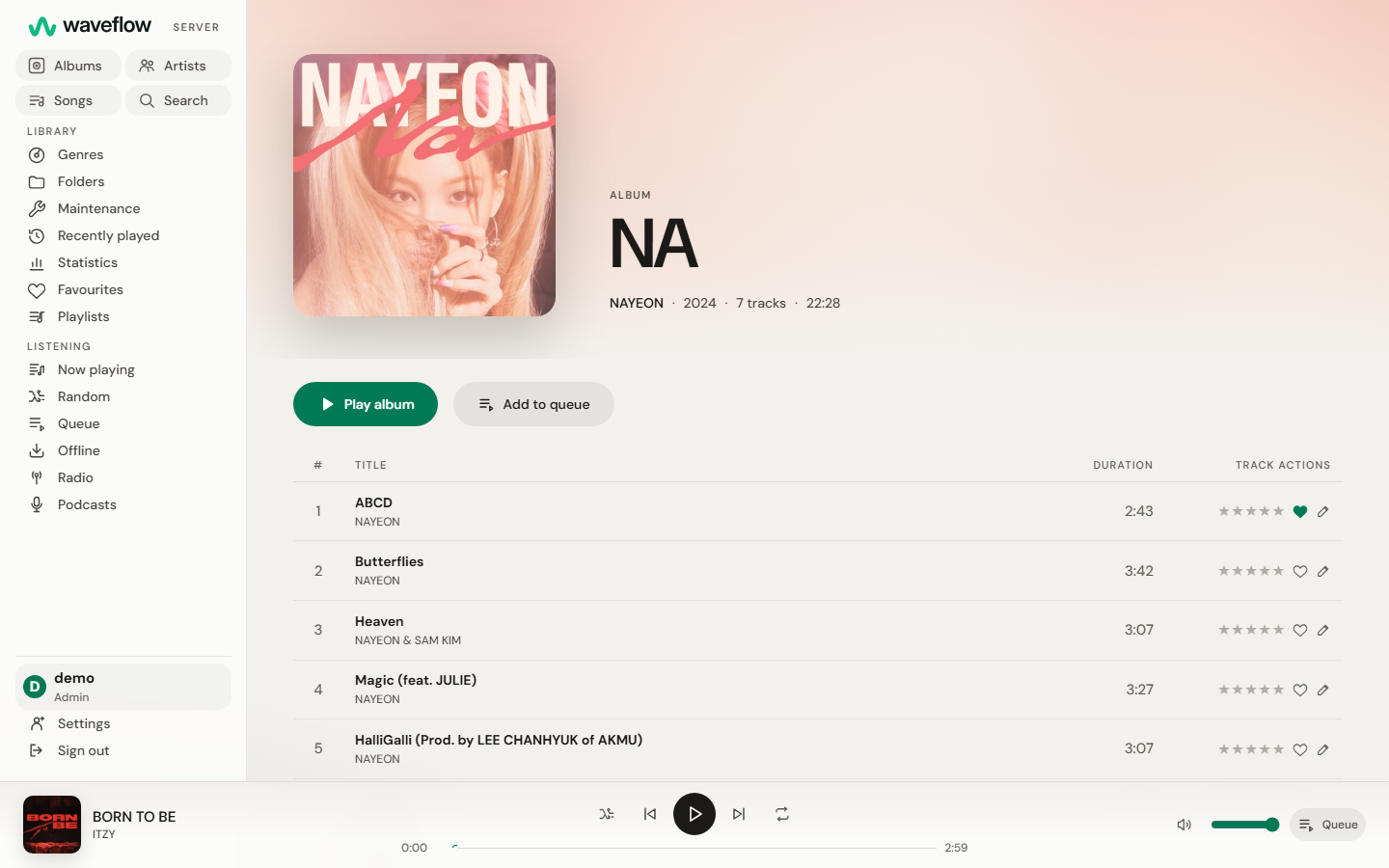
- 14 themes, light and dark, in nine languages: English, French, German, Spanish, Italian, Japanese, Korean, and Simplified and Traditional Chinese.
📚 Your library
- Scans quickly and keeps up: only what changed is read again, one damaged folder does not stop the rest, and a watcher picks up new files as they land.
- Tags or folders: browse by album and artist, or by the folders on your disk.
- Thirteen credit roles (composer, producer, featured artist…), and a joined credit like
Artist A, Artist Bsplit into two artists when you decide it should be. - Missing files keep their data: favourites, ratings and plays wait for the file to come back. A purge can be undone for a week.
- Uploads: a library can accept files sent from a client.
✨ Discovery
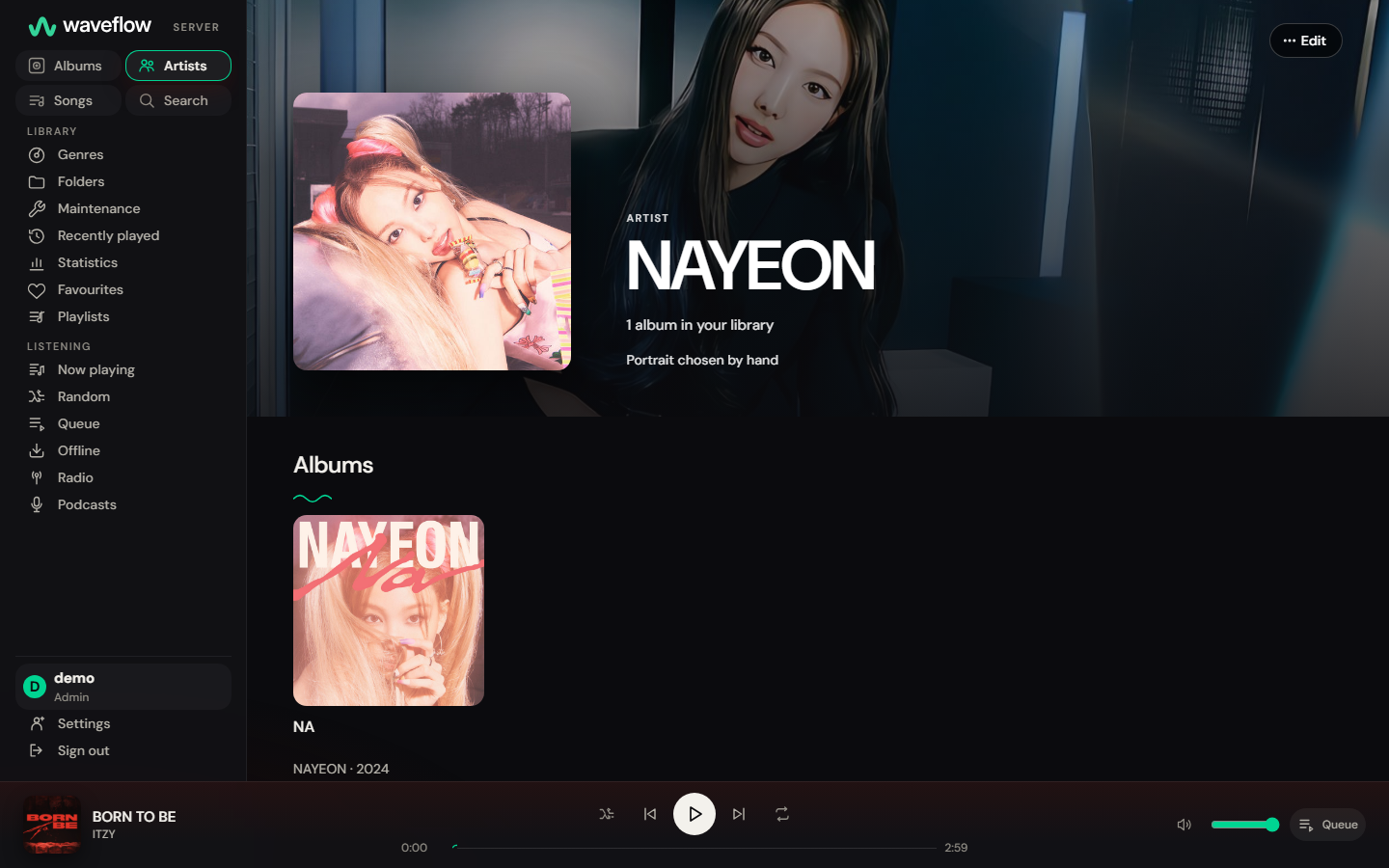
- Artist pages with biographies and similar artists from Last.fm, portraits from Deezer and fanart banners from TheAudioDB, once you opt in.
- Choose the portrait and the banner yourself, or let the server find a banner.
- Smart playlists that fill themselves from rules, internet radio and podcasts.
📋 Playlists and sharing
- Playlists with repeats, public playlists for the other accounts, and
.m3uimport and export. - Share links that open a player page in any browser, with an optional expiry and visit limit.
- Scrobbling to ListenBrainz, Last.fm and Maloja, through a durable queue that survives restarts and retries a service that is down.
🔒 Accounts and safety
- Several accounts, each seeing only the libraries it belongs to.
- Argon2id passwords, tokens stored only as hashes, the Subsonic password encrypted with a local key, and sign-in protected against guessing.
- A one-time token guards the first-run setup, so a stranger cannot claim a fresh server.
- Backups:
waveflow-server database backupcopies the database and its key together, and the server makes a copy of both before every upgrade.
Screenshots
 |
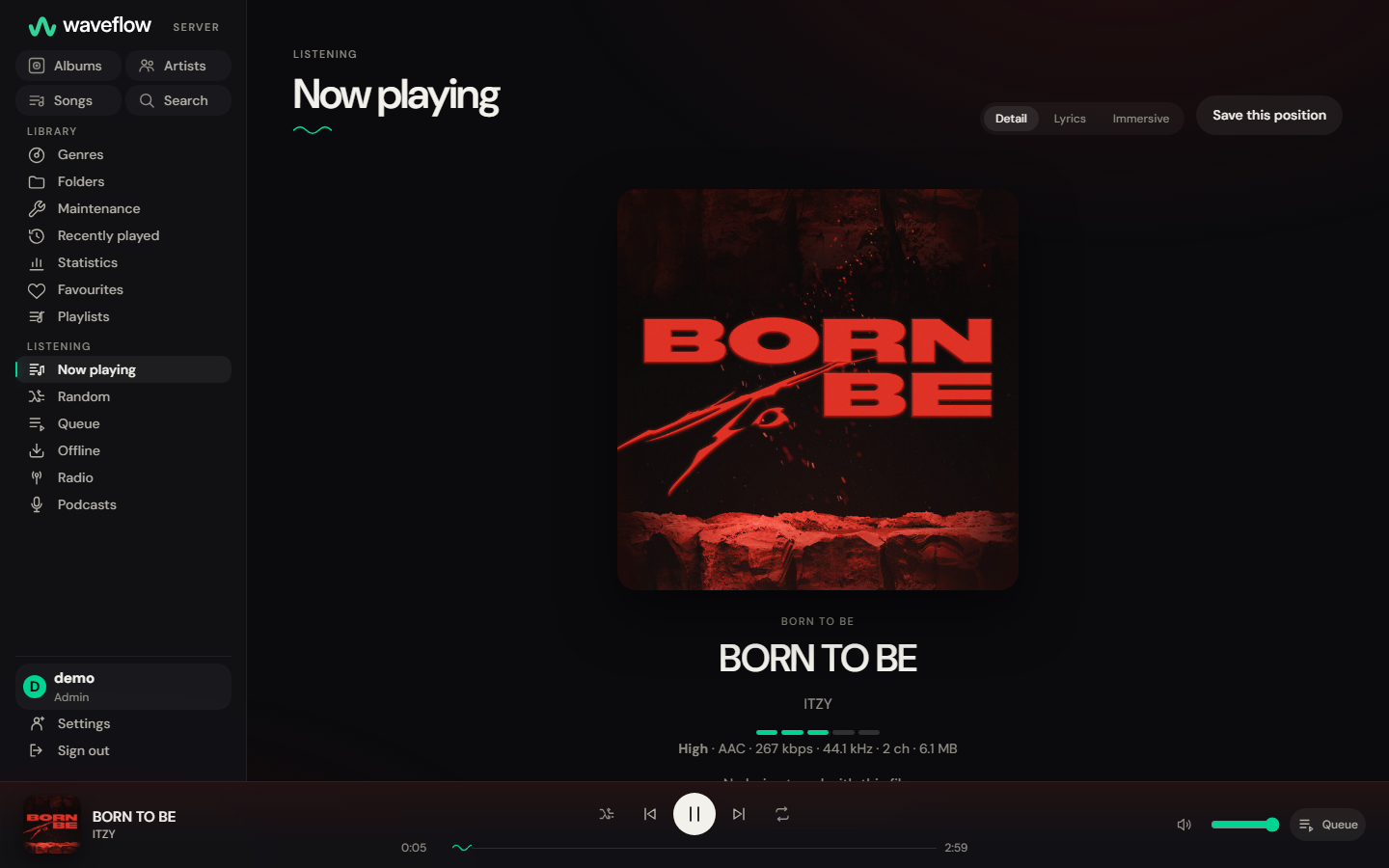 |
| Artist · a portrait and a banner, chosen or found | Now playing · with what is actually being streamed |
 |
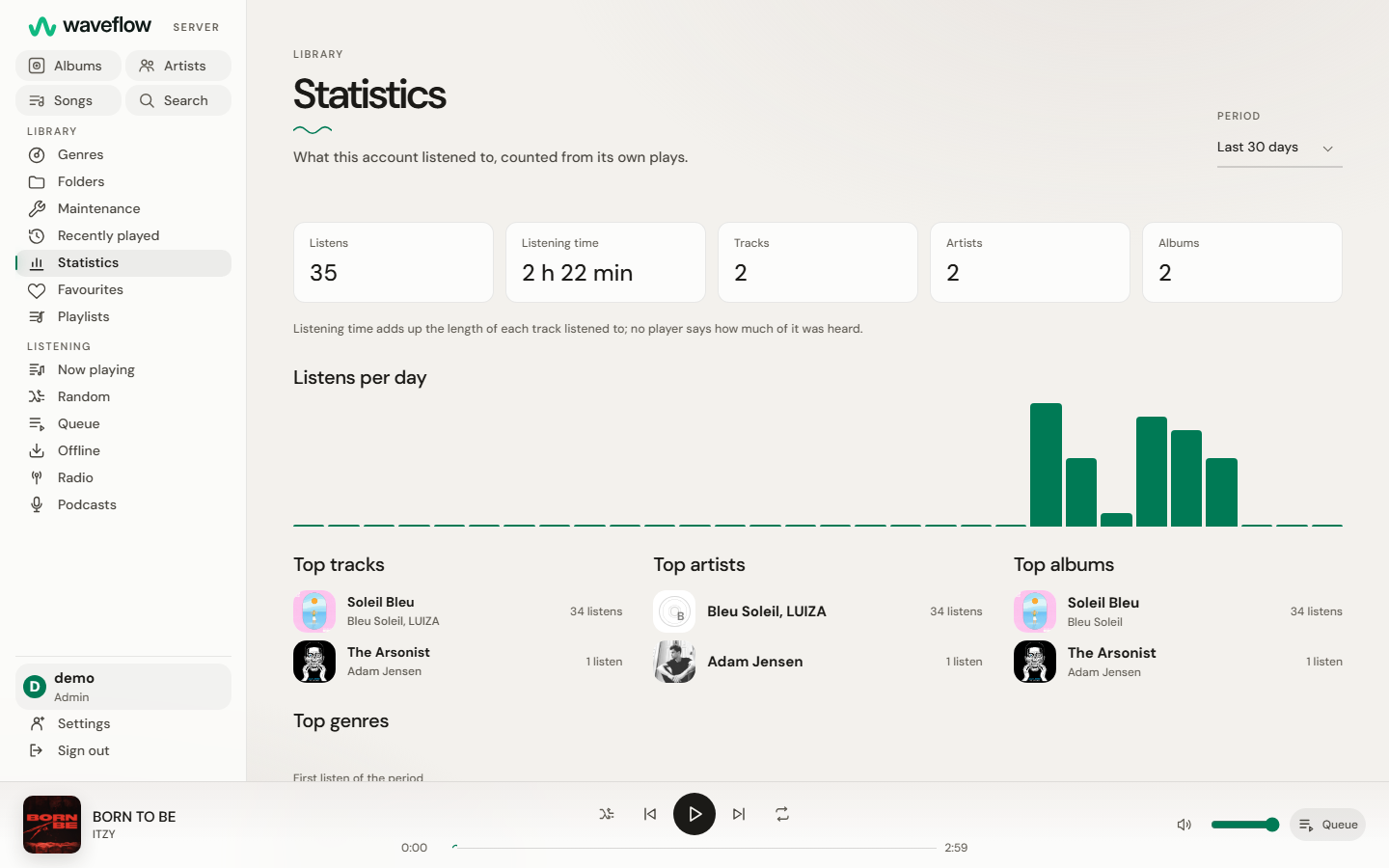 |
| Album · in one of the light themes | Statistics · counted from your own plays |
 |
|
| Quality · every lossless file measured, not taken at its word |
Install
You need FFmpeg and ffprobe, on PATH or beside the waveflow-server executable (already in the Docker image and in the archives below). Nothing else: no database server, no cache, no broker.
On one computer, without Docker
From 2.1.0, each release carries an archive to extract and start, for your own music on your own computer: no terminal on Windows and macOS, no install, and the web player opens on its own.
| System | Archive |
|---|---|
| Windows (x86_64) | waveflow-server-<version>-windows-x86_64.zip |
| macOS (Apple silicon) | waveflow-server-<version>-macos-arm64.zip |
| macOS (Intel) | waveflow-server-<version>-macos-x86_64.zip |
| Linux (x86_64) | waveflow-server-<version>-linux-x86_64.tar.gz |
| Linux (arm64) | waveflow-server-<version>-linux-arm64.tar.gz |
Each holds one folder: the server, its own FFmpeg, a laptop.env of settings, the licences, and a README.txt that walks through the first start. The Windows executables carry a self-signed certificate and the macOS ones an ad-hoc signature, which neither system trusts, so both warn on the first launch; the README.txt says what to click past. SHA256SUMS, on the same release, holds their checksums, and ffmpeg-<version>-sources.tar.gz the source of the FFmpeg they carry. The Linux archives are static and run on any distribution.
The rest of this section is for a server that stays on: the data lives in a folder of your choosing, and the commands assume a terminal.
Docker
docker run -d --name waveflow \
  -p 4533:4533 \
  -v waveflow-data:/data \
  -v /path/to/music:/music:ro \
  ghcr.io/instazdll/waveflow-server:2.3.0
The image is built for linux/amd64 and linux/arm64 (a Raspberry Pi 4 or 5 on a 64-bit system) and published under the same tags on both registries:
| Registry | Image |
|---|---|
| GitHub Container Registry | ghcr.io/instazdll/waveflow-server |
| Docker Hub | docker.io/instazdll/waveflow-server |
Each release is tagged with its version, and latest follows the latest stable release.
On Fedora, RHEL and other systems where SELinux is enforcing, Podman refuses the container your music folder until it is labelled for containers: mount it as /path/to/music:/music:ro,z. The operations guide says what that changes on the host.
With Compose, set WAVEFLOW_MUSIC_PATH to your music folder, which is mounted read-only:
WAVEFLOW_MUSIC_PATH=/path/to/music docker compose up -d
To reach it from outside your home over HTTPS, packaging/caddy/ runs the same server behind Caddy, which obtains and renews the certificate itself; the operations guide explains it, including how to move a server already started with the file above without starting over on an empty volume.
Home Assistant
On Home Assistant OS, which runs no container you start yourself, WaveFlow Server installs as an app (what Home Assistant called an add-on) from its own repository:
Or, in Home Assistant, open Settings → Apps → App store, choose Repositories in the menu, and add https://github.com/InstaZDLL/waveflow-home-assistant.
The app runs the image above, unchanged, on amd64 and aarch64: Home Assistant Green or Yellow, a Raspberry Pi 4 or 5 on a 64-bit system, or an x86 machine. It reads your music, read-only, from Home Assistant's media and share folders. It keeps the database and the instance key in its own folder, which Home Assistant's backups include.
Its first start differs from the steps below, and its documentation walks through it:
- you choose the setup token yourself, in the app's Configuration tab;
- you add a library from the web player rather than from a terminal.
The web player opens on port 4533, in a tab of its own. It cannot show inside Home Assistant's sidebar yet.
First steps
Open http://your-host:4533. The setup screen creates the administrator account; it asks for the one-time token the server wrote in its data directory:
docker exec waveflow cat /data/setup-token
Then add your music under that account (admin below), and the first scan starts on its own:
docker exec waveflow waveflow-server library add --owner admin --name Music --path /music
From the command line instead of the browser
docker exec -e WAVEFLOW_ACCOUNT_PASSWORD='at-least-twelve-characters' \
  waveflow waveflow-server account create-admin --username admin
Connect a Subsonic app
Subsonic apps use a dedicated password, separate from the web one:
docker exec -e WAVEFLOW_SUBSONIC_PASSWORD='a-different-app-password' \
  waveflow waveflow-server credential set --actor admin --username admin
On your own network, point your app at http://your-host:4533 with that username and password. The server speaks plain HTTP, and Subsonic apps send their credentials with every request: -p 4533:4533
Questions
What is waveflow-server?
InstaZDLL/waveflow-server is a public repo on GitHub by InstaZDLL. 🎵 Your music, everywhere you listen — a self-hosted music server with a built-in web player, OpenSubsonic support, smart discovery and one-binary deployment.
Is waveflow-server open source?
It declares the AGPL-3.0 license on GitHub.
Does waveflow-server run on macOS, Windows or Linux?
Its maker tagged it for macOS, Windows and Linux, or as Docker or cross-platform. That is declared by the maker; Take My Repo has not tested it.




