
git-training
Git training. Please submit Pull Requests to the GitLab repository. Mirror of
- 0
- 6 mo ago
Repo b-data/git-training, read from GitHub 1 min ago. b-data has not joined Take My Repo.
In short
b-data/git-training is a public repo on GitHub by b-data. Git training. Please submit Pull Requests to the GitLab repository. Mirror of. It declares no license on GitHub. Public does not mean open source: without a license, nobody is granted the right to reuse it. It is written mainly in JavaScript, has 0 stars and last changed on 2026-05-19. Nobody has reviewed it on Take My Repo yet, which says nothing about its quality. Read from GitHub on 2026-11-22.
Git training
This repository contains all material used during on-site training sessions for several customers. Typically, their setup is as follows:
- RStudio Server Pro
- git, nano, r-base, ssh-client
- GitLab Community Edition (CE)
→ Omnibus package (recommended installation)
Both applications running on Ubuntu Server (LTS, 64-bit).
ℹ️ As of 2020-04-29: Git v2.17.1 on RStudio Server Pro (Ubuntu
18.04 LTS).
Inspiration
This tutorial was inspired by Hadley Wickham's
Git and GitHub · R packages. I highly
recommend reading this chapter of his book on R packages.
ℹ️ There is a second edition available at
https://r-pkgs.org/git.html.
Worth mentioning is Jenny Bryan's far more extensive Happy Git and GitHub for the useR, which also covers common problems seen on major platforms and possible solutions.
Prerequisites
All instructions in this tutorial focus on the use of Git with RStudio Server. If you use RStudio Desktop, please see https://git-scm.com/downloads on how to install Git on your PC.
To carry out the instructions on your own, the following is required:
- A PC with internet access
- RStudio Server or Desktop
- GitLab CE or GitLab.com
❗ Please use Firefox (recommended) or Microsoft Edge, not Internet Explorer (IE).
GitLab and Git are stand-alone software tools that can be used independently from RStudio. GitLab may also be used for projects with Matlab, Python, etc. as version control system (VCS).
For every action performed with RStudio's Git pane the equivalent shell commands will be provided. These may be executed using RStudio Terminal (or Git bash).
❗ The provided non-git commands are Linux specific. If you are working with Microsoft Windows, you have to find the corresponding command yourself.
Git over SSH
It is strongly recommended using an SSH connection when interacting with GitLab. SSH keys are a way to identify trusted computers, without involving passwords.
However, many corporate networks block SSH connections (port 22/tcp) to the outside world (aka Internet). In this case you must use Git over HTTPS.
❗ When Two-Factor Authentication (2FA) is enabled you can no longer use your normal account password to authenticate with Git over HTTPS on the command line or when using GitLab’s API. You must use a personal access token instead.
Terminal
The RStudio Terminal provides access to the system shell from within the RStudio IDE. It supports xterm emulation, enabling use of full-screen terminal applications (e.g. text editors, terminal multiplexers) as well as regular command-line operations with line-editing and shell history.
There are many potential uses of the shell including advanced source control operations, execution of long-running jobs, remote logins, [...]
The Terminal tab is next to the Console tab. Click on the Terminal tab and a new terminal session will be created (if there is not one already).
- If the tab is not visible, show it via
Shift+Alt+T(Tools > Terminal > Move Focus to Terminal).
— Using the RStudio Terminal - RStudio Support
Keyboard shortcuts
- Copy:
Ctrl+Insert - Paste:
Shift+Insert
👉 These keyboard shortcuts also work in the Source editor and the Console tab.
Setup
First, you are going to clone this project, configure Git, generate a SSH key pair in RStudio and add the SSH public key to GitLab.
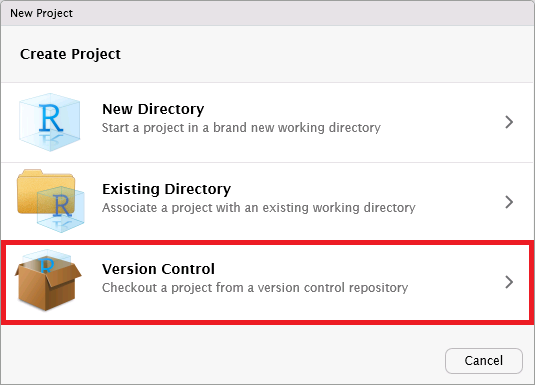
How to clone this project (with HTTPS)
- Copy the project's URL:
https://gitlab.com/b-data/git/git-training.git - In RStudio go to Menu "File" > "New Project" > "Version Control"
- Select "Git"
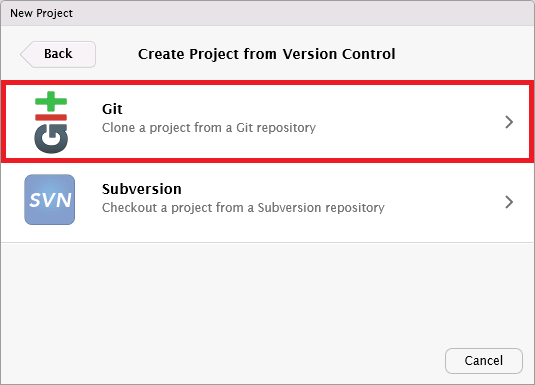
- Paste the copied URL into field "Repository URL:"
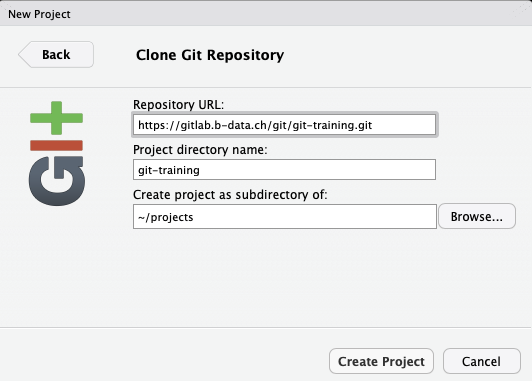
- Click "Create project"


cd ~/projects
git clone https://gitlab.com/b-data/git/git-training.git
Open file "git-training.Rproj" using RStudio's Files pane (bottom right).
Configure Git
git config --global user.name "<Name>"
git config --global user.email <Email>
👉 Replace <Name> (e.g. Hans Muster) and <Email> (e.g.
hans.muster@domain.tld) according to your GitLab CE or
GitLab.com profile.
One might also consider setting core.editor and merge.conflictstyle, e.g.
git config --global core.editor nano
git config --global merge.conflictstyle diff3
Generate SSH key pair
See Generating a new SSH key and adding it to the ssh-agent - GitHub help for full instructions when working with Mac, Windows or Linux.
Otherwise:
ssh-keygen -t ed25519
Generating public/private rsa key pair.
Enter file in which to save the key (/home/<user>/.ssh/id_rsa):
Enter passphrase (empty for no passphrase):
Enter same passphrase again:
Your identification has been saved in /home/<user>/.ssh/id_rsa.
Your public key has been saved in /home/<user>/.ssh/id_rsa.pub.
[...]
👉 Accept default values by pressing Enter.
Add SSH public key to GitLab
In RStudio: Copy SSH public key
Open Menu "Tools" > "Global Options":
- "Git/SVN"
- SSH RSA key: View public key
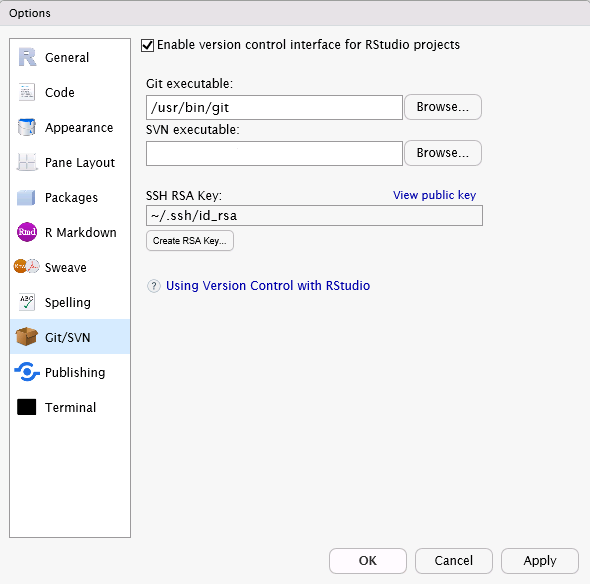
👉 Select and press Ctrl+C to copy the key to the clipboard.
- SSH RSA key: View public key

On GitLab: Add SSH public key
Open "User Settings" > "SSH Keys" on GitLab CE or GitLab.com, paste your SSH Key into the field "Key" and click "Add Key".

My first repository
In GitLab: Create new project
To add a new project to your GitLab account press the "+" sign on the menu bar and click on "New project".

On the next page
- choose a suitable "Project name"
👉 If you have not yet created a group, your user name will be automatically added to the "Project URL". - (optional) modify the "Project slug"
- set "Visibility Level" to "Public"
and click on "Create project".

👉 Use "Visibility Level" "Private" only, if you do not want the project being publicly accessible.
Clone your GitLab project with SSH
- Copy the projects's URL:
git@gitlab.com:<user>/<project-name>.git
👉<user>and<project-name>depend on your setup. - Follow steps 2-5 of
How to clone this project (with HTTPS)
👉 Tick "Open in new session" before clicking "Create Project". - While cloning a repository for the first time, you will be asked if you want
to connect to the host.
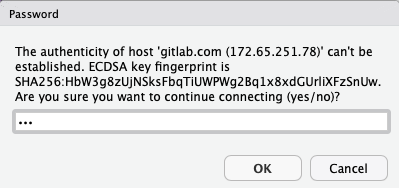
Write "yes" and click "OK".

cd ~/projects
git clone git@gitlab.com:<user>/<project-name>.git
Open file "<project-name>.Rproj" using RStudio's Files pane (bottom right).
git clone <repository> clones a repository into a newly created
directory. It automatically
- creates remote-tracking branches for each branch in the cloned repository.
- visible using
git branch --remotes.
- visible using
- checks out an initial branch that is forked from the cloned repository.
- from the active branch (default: master).
You are ready to go!
Beginner session
See tutorial in beginner.md
Intermediate session
See tutorial in intermediate.md
GitLab vs GitHub
Both GitLab (and GitLab.com) and GitHub (and GitHub.com) are products providing a Git repository hosting service.
Similarities
Along with GitLab.com, GitLab has two versions, GitLab Community Edition (CE) and GitLab Enterprise Edition (EE), for self-hosting. Similarily, GitHub has GitHub.com and GitHub Enterprise. As of now, both GitLab and GitHub offer (almost) the same features.
-
The main advantage of GitLab is its open source nature, which allows you to run GitLab on your own servers.
-
GitLab is newer than GitHub, so naturally it is a little less popular than GitHub.
Differences
The naming of features differs a little bit:

— Comparing confusing terms in GitHub, Bitbucket, and GitLab (2017) | GitLab
Furthermore
— What are the differences between GitHub & GitLab? - Quora
*As of April 14, 2020, private GitHub repositories with unlimited collaborators
are free for everyone.
ℹ️ See also GitLab’s own comparison GitHub vs GitLab.
Questions
What is git-training?
b-data/git-training is a public repo on GitHub by b-data. Git training. Please submit Pull Requests to the GitLab repository. Mirror of.
Is git-training open source?
It declares no license on GitHub. Public does not mean open source: without a license, nobody is granted the right to reuse it.
Does git-training run on macOS, Windows or Linux?
Its maker tagged it for Windows and Linux. That is declared by the maker; Take My Repo has not tested it.
How do I install git-training?
Open "Take it" on its page: Take My Repo writes an install plan for your machine and hands it to your AI agent (Claude Code, Codex or Cursor), which asks you before each step. Take My Repo has not tested it on any machine.
Is git-training still maintained?
Its last change on GitHub was on 2026-05-19. GitHub counts 0 open issues and pull requests. Take My Repo does not judge from that whether it is maintained.