
ADServiceAccountManager
The AD Service Account Manager! This is a PowerShell script that simplifies the process of managing service accounts in an Active Directory environment. With this tool, you can create, modify, and remove Group Managed Service Accounts (gMSA) and Standard Service Accounts with ease.
- 15
- MIT
- 17 mo ago
Repo michaelmsonne/ADServiceAccountManager, read from GitHub 3 h ago. michaelmsonne has not joined Take My Repo.
In short
michaelmsonne/ADServiceAccountManager is a public repo on GitHub by michaelmsonne. The AD Service Account Manager! This is a PowerShell script that simplifies the process of managing service accounts in an Active Directory environment. With this tool, you can create, modify, and remove Group Managed Service Accounts (gMSA) and Standard Service Accounts with ease. It declares the MIT license on GitHub. It is written mainly in PowerShell, has 15 stars and last changed on 2025-07-06. Nobody has reviewed it on Take My Repo yet, which says nothing about its quality. Read from GitHub on 2026-11-25.
Similar repos

AD ServiceAccount Manager

Table of Contents
Introduction
The AD ServiceAccount Manager is a powerful PowerShell script and tool designed to streamline the management of service accounts in an Active Directory environment.
It simplifies the creation, modification, and removal of both Group Managed Service Accounts (gMSA) and Standard Accounts (SSA), but also the migration to gSMA!.
I originally built this tool for internal use — it solved a very specific pain point for managing accounts across domains and OUs at a previous job.
Some sneak peak from the original private repo:
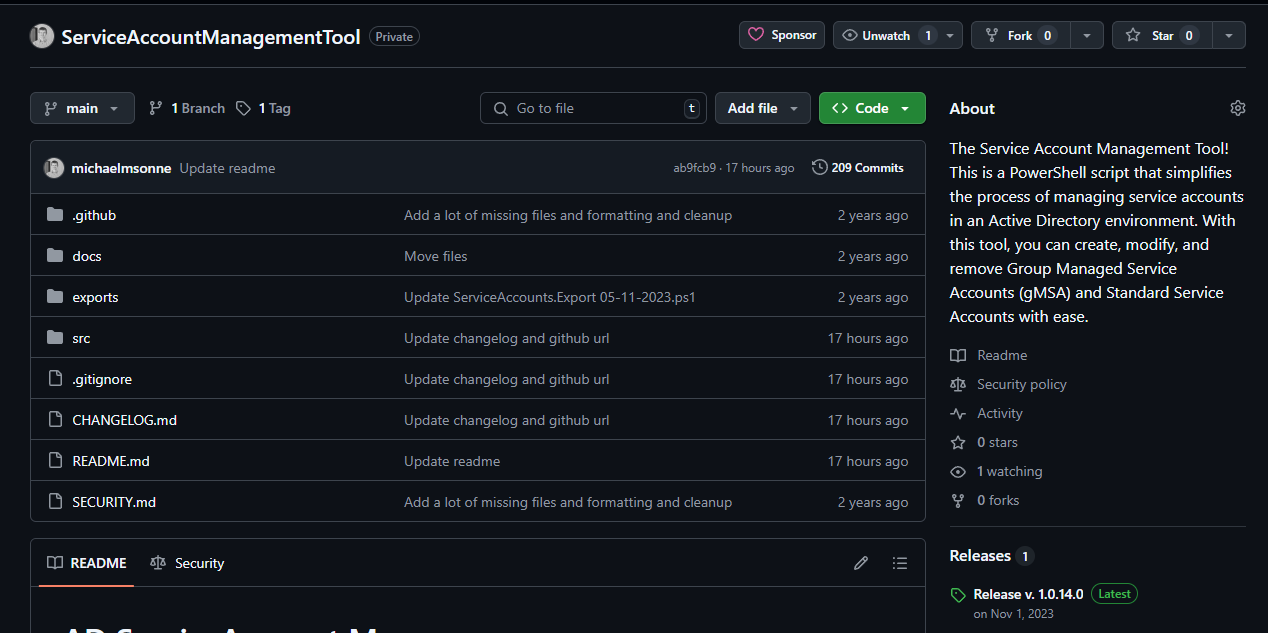
Your feedback and support are always welcome! 🤩🤘
Why this tool is needed in the community
Many existing solutions for managing etc. gMSA accounts (like the build-in MMC), lack the ease of use and cohesion that this tool provides. This PowerShell tool solves those issues by offering:
- Simplicity: Consolidates everything in one place—no need to search for scripts.
- Security: Confirmation prompts for high-risk tasks, with full logging for audit transparency.
- Efficiency: Handles your task easy and fast!
How this tool will help you
- Build confidence: Logging and confirmations provide peace of mind.
- Save time: No more script-hunting; everything is centralized.
- Reduce errors: User-friendly steps and prompts help avoid mistakes.
- Increase efficiency: Easily manage multiple service accounts in your enviroment!
Contents
Outline the file contents of the repository. It helps users navigate the codebase, build configuration and any related assets.
| File/folder | Description |
|---|---|
\src |
Source code. |
\docs |
Div. documents and information. |
\exports |
Exports in raw PowerShell code. |
.gitignore |
Define what to ignore at commit time. |
CHANGELOG.md |
List of changes to the sample. |
CONTRIBUTING.md |
Guidelines for contributing to the ADServiceAccountManager. |
README.md |
This README file. |
SECURITY.md |
This README file. |
LICENSE |
The license for the ADServiceAccountManager. |
There is over 6000 lines of Powershell code 😆
🚀 Features
Group Managed Service Accounts (gMSA)
- Create new Group Managed Service Accounts (gMSA).
- Remove existing gMSA.
- Assign and remove Service Principal Names (SPNs) to gMSA.
- Add and remove gMSA from Active Directory groups.
- Modify gMSA attributes.
Standard Accounts (SSA)
- Create new Standard Accounts (SSA).
- Remove existing Standard Accounts (SSA).
- Add and remove Standard Accounts (SSA) from Active Directory groups.
- Modify Standard Service Account attributes.
- Migrate Standard Accounts (SSA) to gMSA.
Domain Information
- Information about connected Active Directory:
- Check for SYSVOL type (FRS or DFRS).
- Check for Enabled users.
- Check for stale user objects not logged in the last 30, 60, or 90 days.
- Check for stale computer objects not logged in the last 30, 60, or 90 days.
- Check for Tombstone Lifetime.
- Check for when Active Directory is created.
- Check for if and where an Azure AD Connect is installed.
- Check for UPN suffixes.
- Check for Trusts.
- Check for Exchange Server(s) in the domain.
- Information about where FSMO Roles are in the domain (server names).
- Domain functions and levels.
- Domain Objects (like users, computers, and groups).
- Check if Microsoft Group Key Distribution Service (KdsSvc) is installed in Active Directory.
- ...
Exports
- Export data from the domain information page to .csv.
- Export stale objects from the domain information page to .csv.
- Access a dynamic name for the export file of .csv for GMSA and SSA accounts.
📸 Screenshots
To be continued...
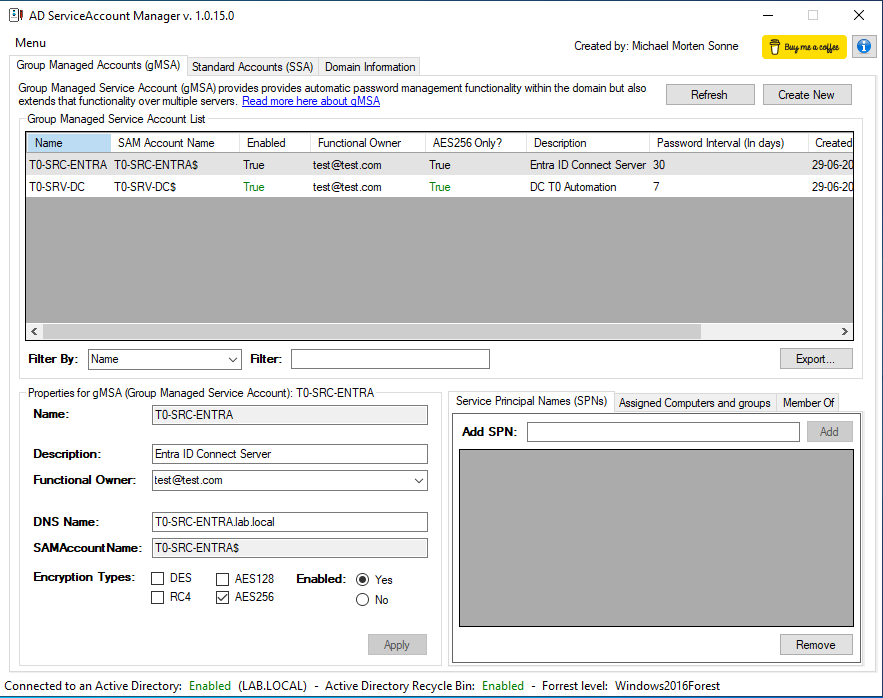
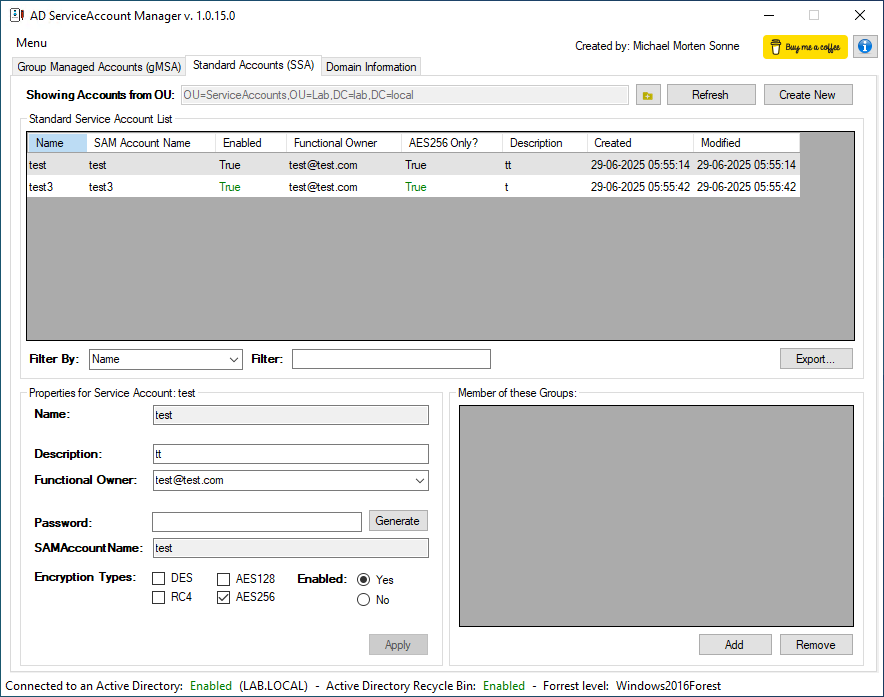
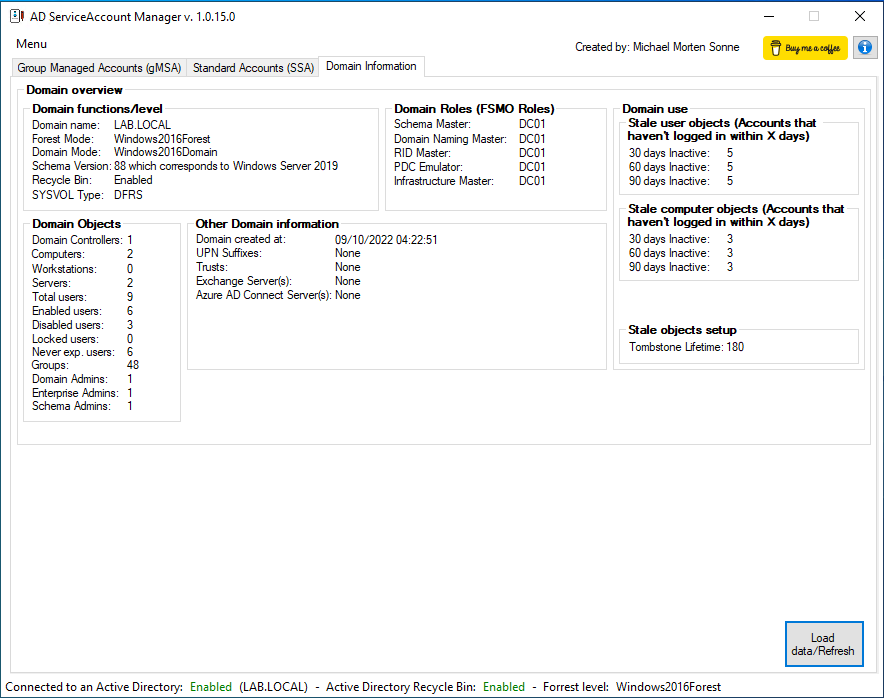
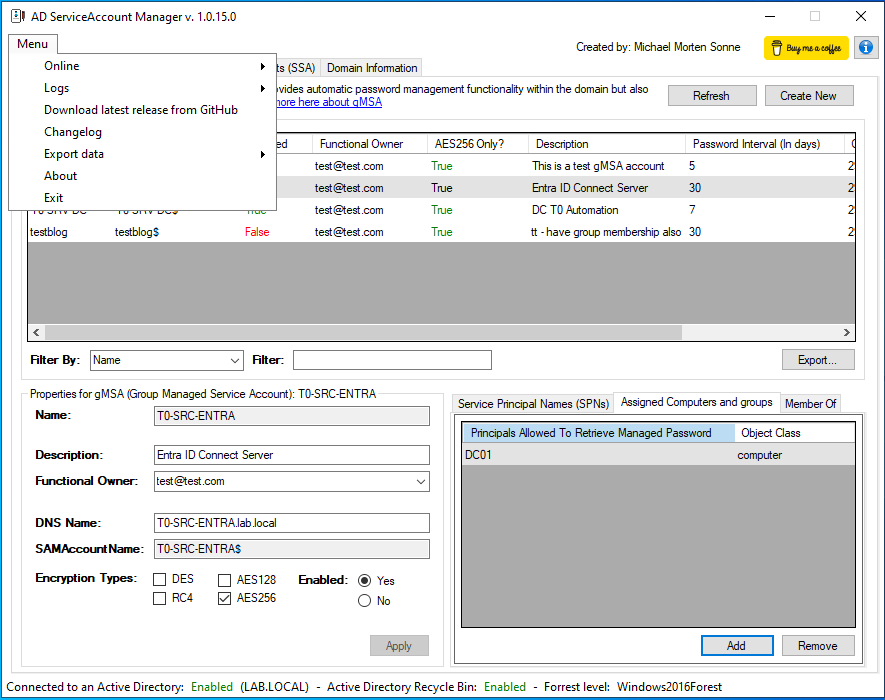
This tool offers an extensive set of features that cater to the needs of administrators, making it an indispensable resource for managing service accounts in an Active Directory environment.
Download
⚡ Getting Started
Known bugs
- None
🛠 Prerequisites
To run the AD ServiceAccount Manager, you will need:
- Windows PowerShell 5.1 or later
- The Active Directory module installed on your system
- The appropriate permissions to create and manage service accounts in Active Directory
Network Protocols and Features Required for Remote Actions
To use remote features in AD ServiceAccount Manager (such as checking if service accounts are used, or installing/uninstalling a gMSA account on remote servers), the following protocols and features must be enabled and configured on both the management and target computers:
Required Protocols & Features:
WinRM (Windows Remote Management)
- WinRM must be enabled and running on all remote computers.
- By default, WinRM listens on HTTP (port 5985) and optionally HTTPS (port 5986).
PowerShell Remoting
- PowerShell Remoting must be enabled (
Enable-PSRemoting -Force). - The user running the command must have permission to connect remotely (typically a member of the Administrators group on the target machine, or configured via
Set-PSSessionConfiguration).
- PowerShell Remoting must be enabled (
Network Connectivity
- TCP port 5985 (HTTP) or 5986 (HTTPS) must be open between the management host and the target computers.
- Firewalls must allow inbound connections on these ports.
Kerberos Authentication
- For domain-joined computers, Kerberos is used for authentication by default.
- Both the management host and target computers must be in the same or trusted domains.
Remote Management Exceptions
- The target computer’s firewall must allow "Windows Remote Management" (can be enabled via
Enable-PSRemoting).
- The target computer’s firewall must allow "Windows Remote Management" (can be enabled via
Optional/Recommended
CredSSP or HTTPS
- For passing credentials or running commands that require credential delegation, configure CredSSP or use HTTPS for WinRM.
Active Directory Module
- The Active Directory module should be available on the management host for AD-related cmdlets.
Example: Enable Remoting on Target Computer
Enable-PSRemoting -Force
Example: Open Firewall for WinRM
Set-NetFirewallRule -Name 'WINRM-HTTP-In-TCP' -Enabled True
Summary
You need WinRM enabled, PowerShell Remoting configured, open network ports (5985/5986), proper authentication (Kerberos), and firewall rules allowing remote management. Both management and target computers should be domain-joined for seamless Kerberos authentication.
Changes to the tools code
For changes, PowerShell Studio is it for now
Installation
You can either clone this repository and build the project yourself.
The AD ServiceAccount Manager GUI can be run as an elevated executable (preferred) or as a script. Below are the instructions to load as a script.
- Log into a Domain Controller, in the domain where the service account will be created
- Open PowerShell as Administrator
- Navigate to the folder where the script is located
- Run the following command:
.\ADServiceAccountManager.ps1
Or run executable:
.\ADServiceAccountManager v. x.x.x.x - Build at xxxxxxxx-xxxxxx
Usage
🔧 How to Use
- Open the AD ServiceAccount Manager GUI
- Group Managed Service Accounts (gMSA)
- Standard Accounts (SSA)
Group Managed Service Accounts (gMSA)
Add/Remove Group Managed Service Accounts
Create a New Group Managed Service Account
In the AD ServiceAccount Manager GUI
- Select the Group Managed Accounts (gMSA) tab
- Click the Create New button
- Select the Group Managed Accounts (gMSA) tab
In the New Group Managed Service Account window that appears
Questions
What is ADServiceAccountManager?
michaelmsonne/ADServiceAccountManager is a public repo on GitHub by michaelmsonne. The AD Service Account Manager! This is a PowerShell script that simplifies the process of managing service accounts in an Active Directory environment. With this tool, you can create, modify, and remove Group Managed Service Accounts (gMSA) and Standard Service Accounts with ease.
Is ADServiceAccountManager open source?
It declares the MIT license on GitHub.


